

Storyly V2 Analytics Guide
A Widget-by-Widget Guide
Storyly V2 Analytics now shows performance per widget type: Story Bar, Video Feed, Banner, Swipe Card and Canvas. Each widget type has its own page under Widgets Analytics, split into two views:
• Widget Performance shows how the widget itself does: whether people see it and interact with it.
• Content Performance shows how each piece of content inside the widget does: each story group, video, banner slide, card or canvas.
This update has two goals: Improving the metrics so they reflect how your widgets and content actually perform, and bringing every widget type under one consistent set of metrics and definitions.
Story Bar
Story Bar has both levels:
- Widget Performance tells you whether people see and open the bar, and Content Performance tells you how the stories inside perform.
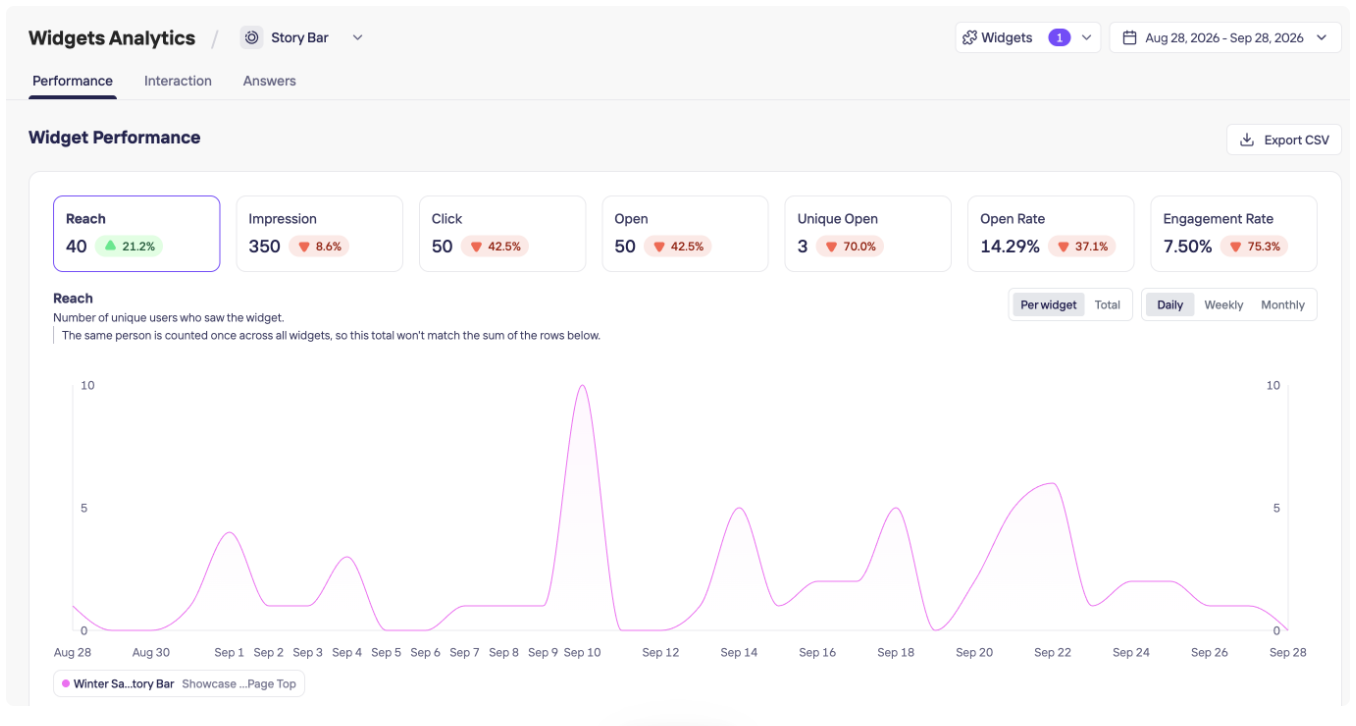
In the example above, 40 people saw the "Homepage Stories" Story Bar and 3 opened a story, so Engagement Rate is 3 ÷ 40 = 7.50%. Open Rate is 50 opens ÷ 350 impressions = 14.29%.
The chart shows the total across all selected widgets, and the table below it shows each widget. Engagement Rate is shown monthly on the chart. Open Rate and Engagement Rate can go above 100%.
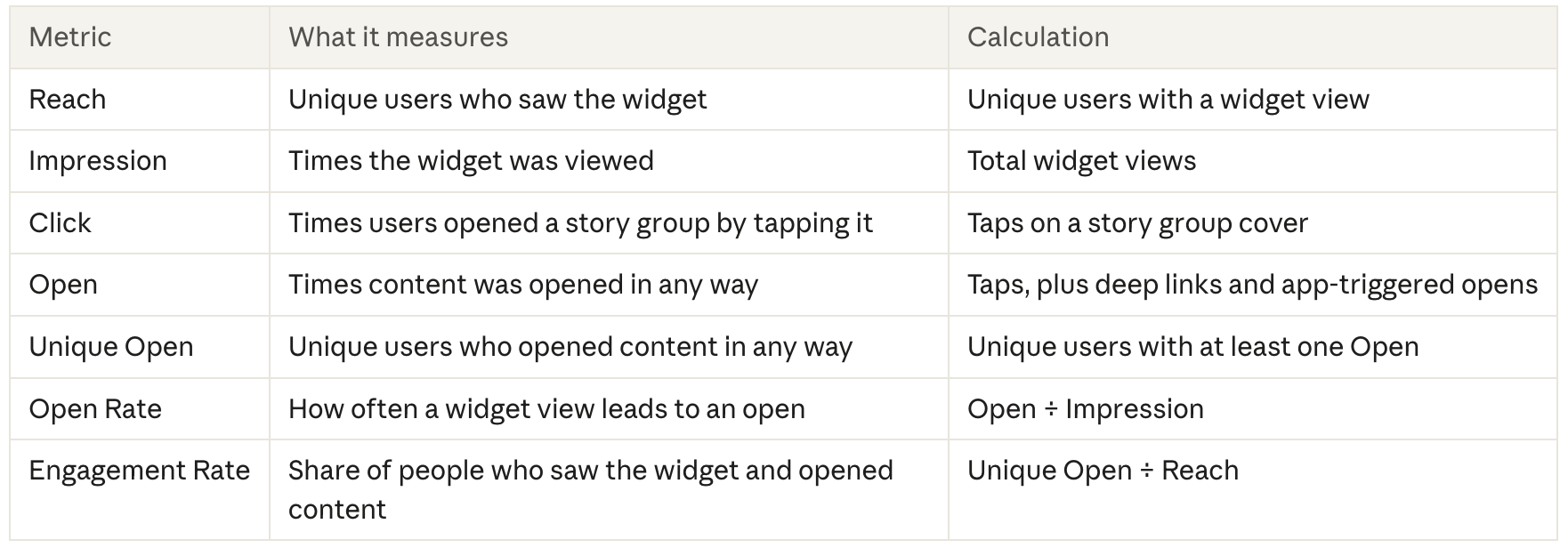
- Content Performance tells you how the story groups inside the bar perform.
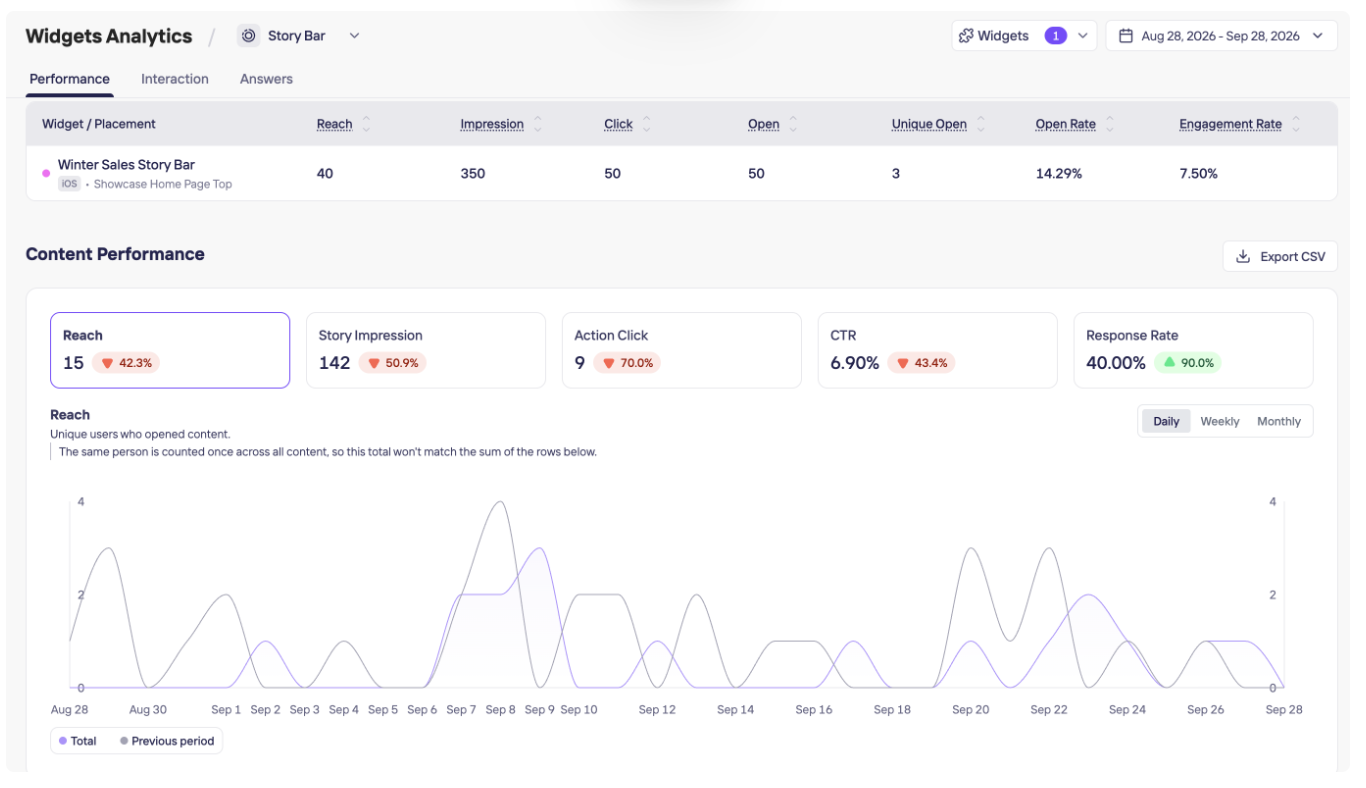
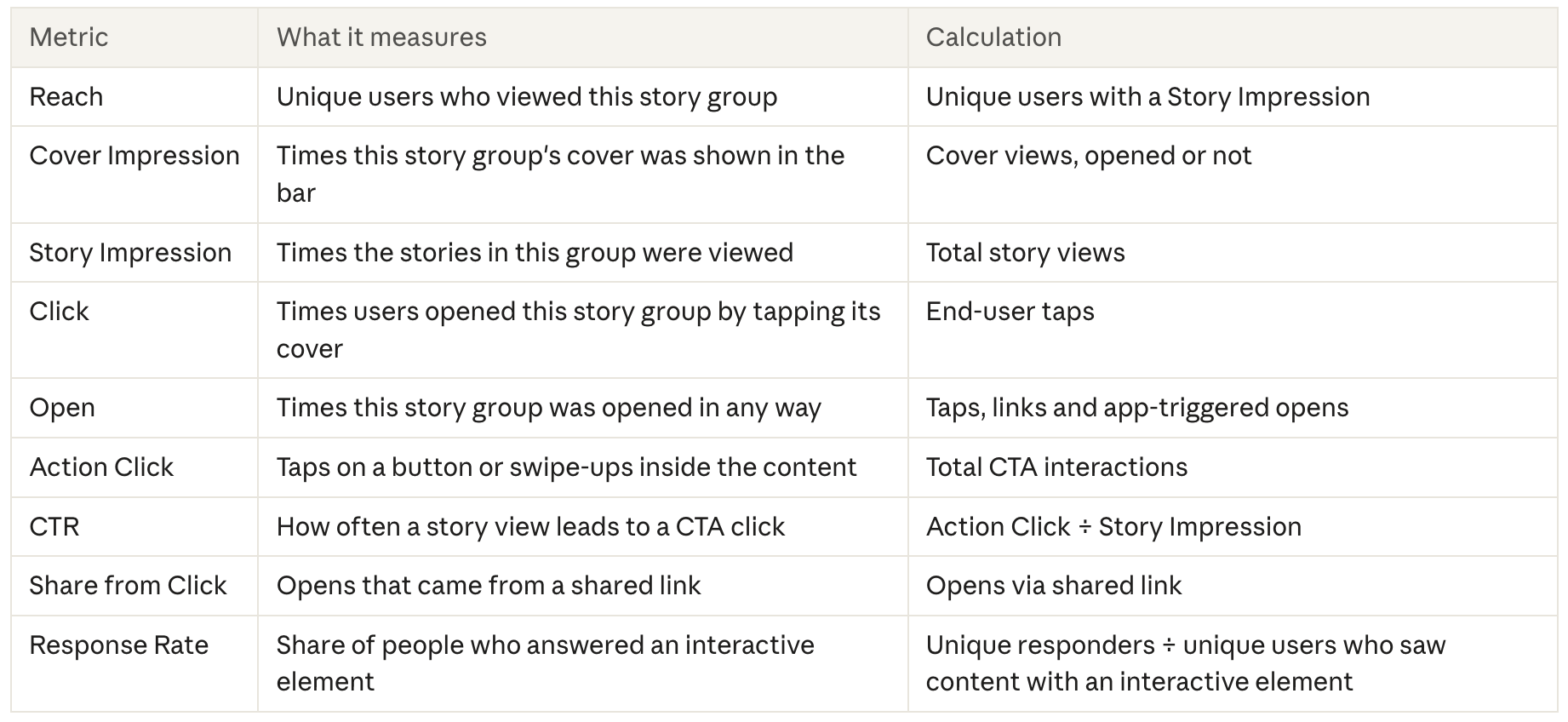
The chart shows the total across all content and compares the selected metric with the previous period. Response Rate is shown monthly. One person opening a story group in three sessions adds three Story Impressions, and a group with more stories collects more views.
-
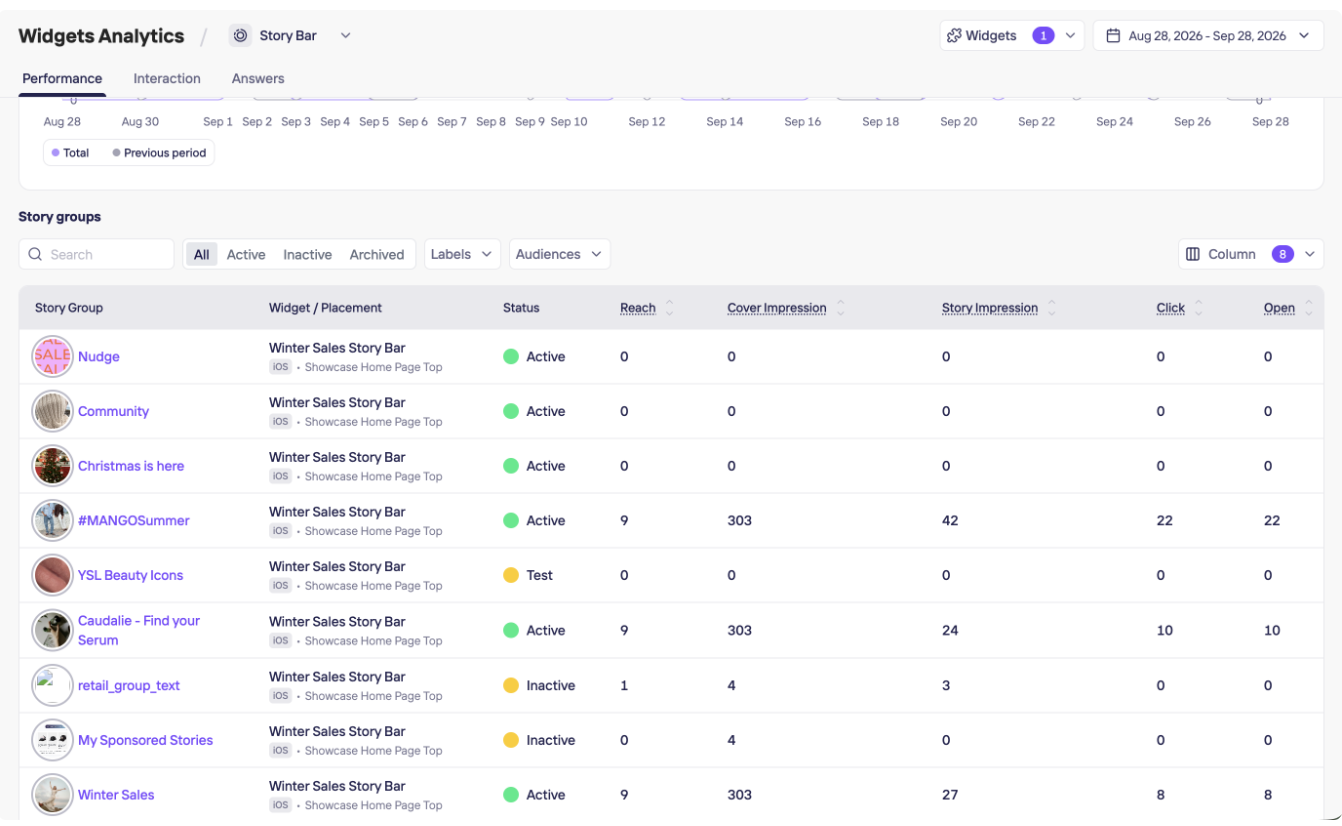
Story group table: Each story group gets its own row with its widget, placement, platform and status (Active, Inactive, Test or Archived), plus the Content Performance metrics above. You can add or hide metrics with Column.
-
Story Level: Opening a story group shows each story separately.
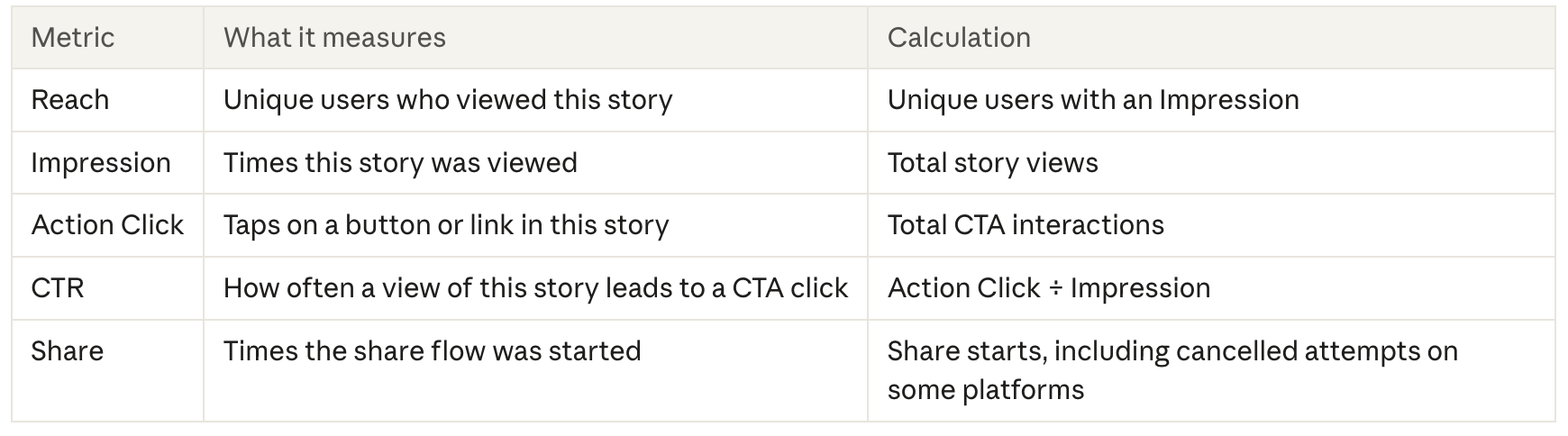
Note:
A story view counts after 1 second for images and GIFs, and 2 seconds for videos. Videos longer than 2 minutes counts after 1 second.
Video Feed
Video Feed works like Story Bar: Widget Performance covers the feed entry point, and Content Performance covers each video.
- Widget Performance covers the feed entry point.
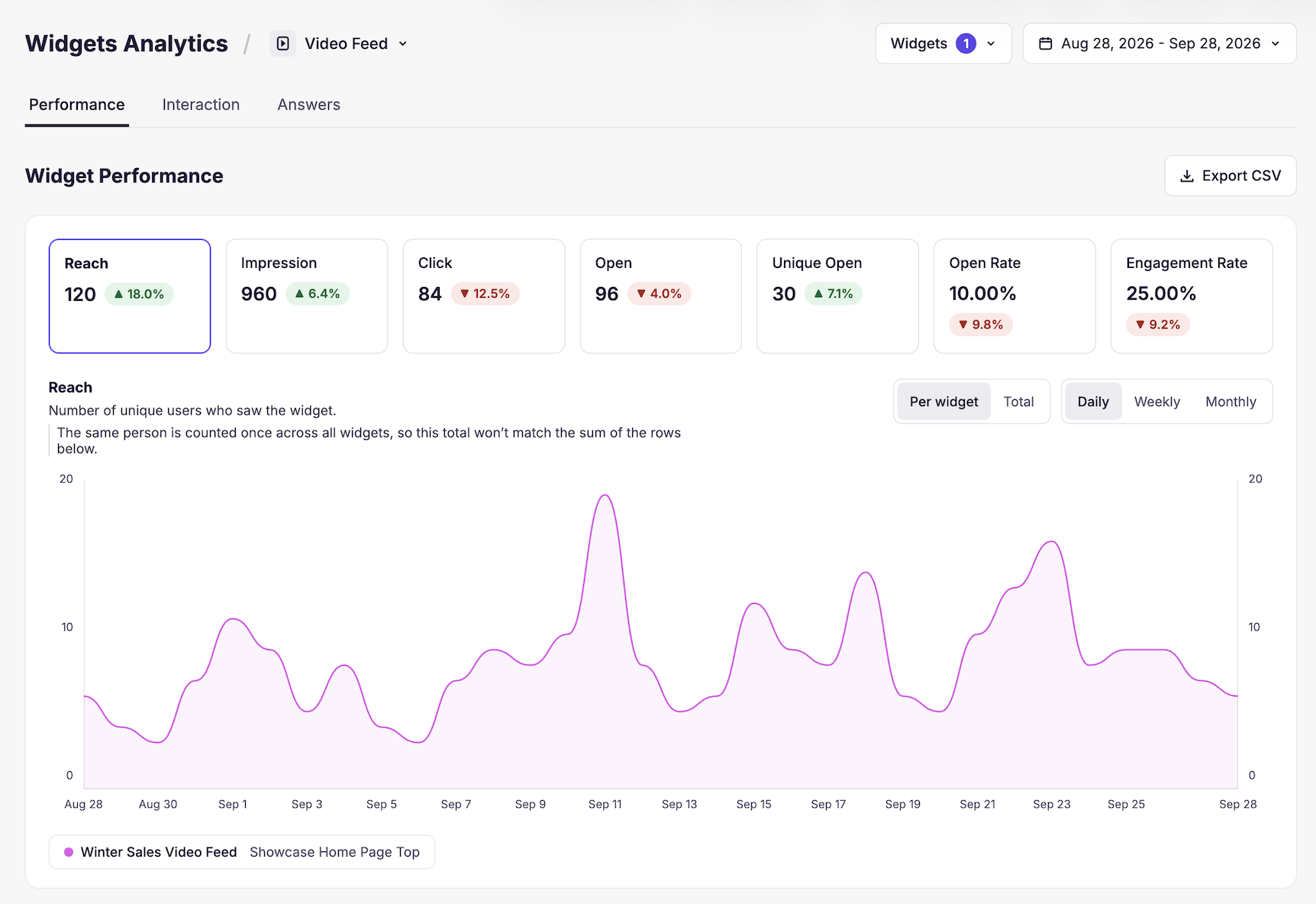
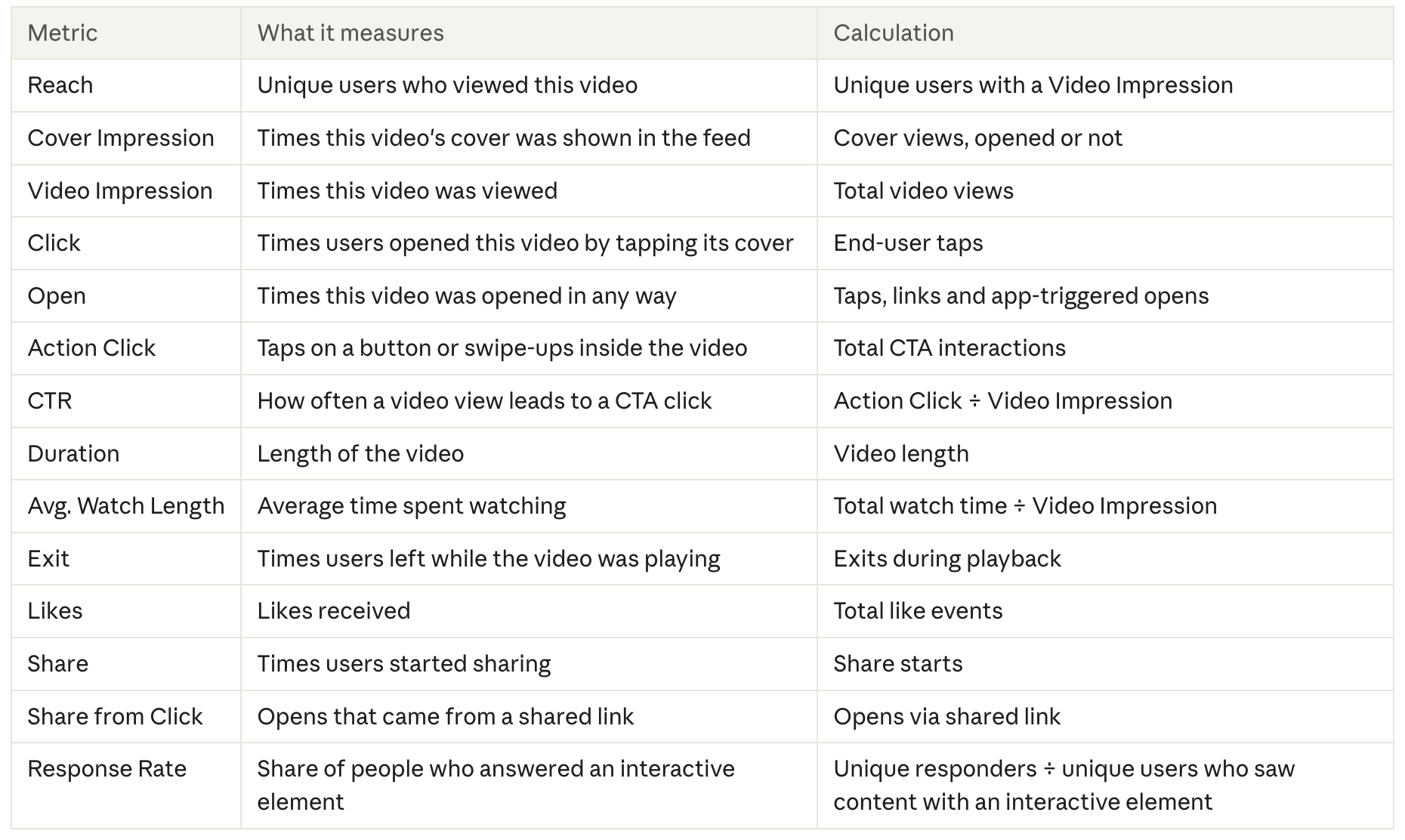
The metric cards match Story Bar: Reach, Impression, Click, Open, Unique Open, Open Rate and Engagement Rate, with the same calculations. Click counts taps on a video cover, and Open counts videos opened in any way.
-
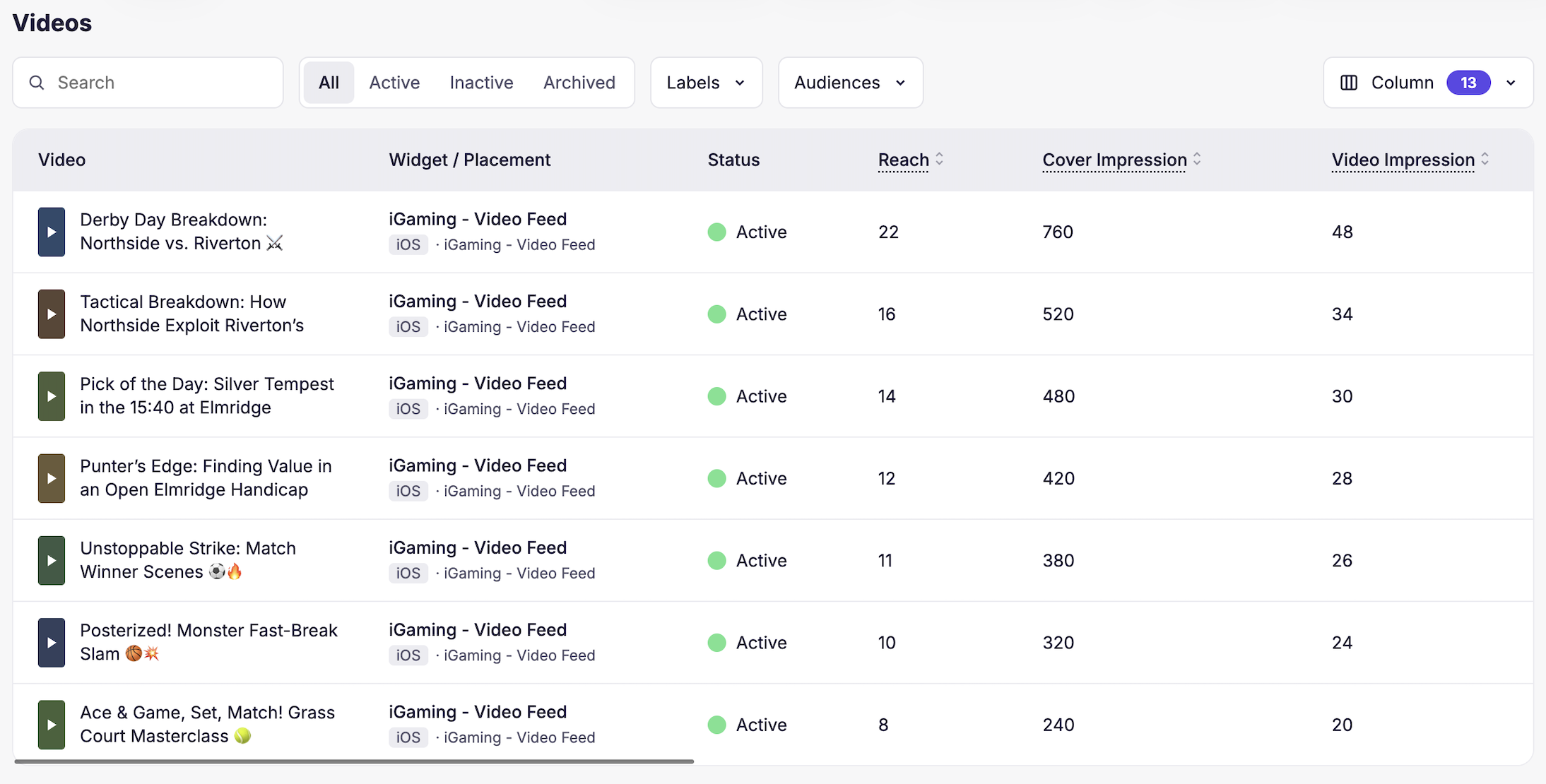
Content Performance covers each video.
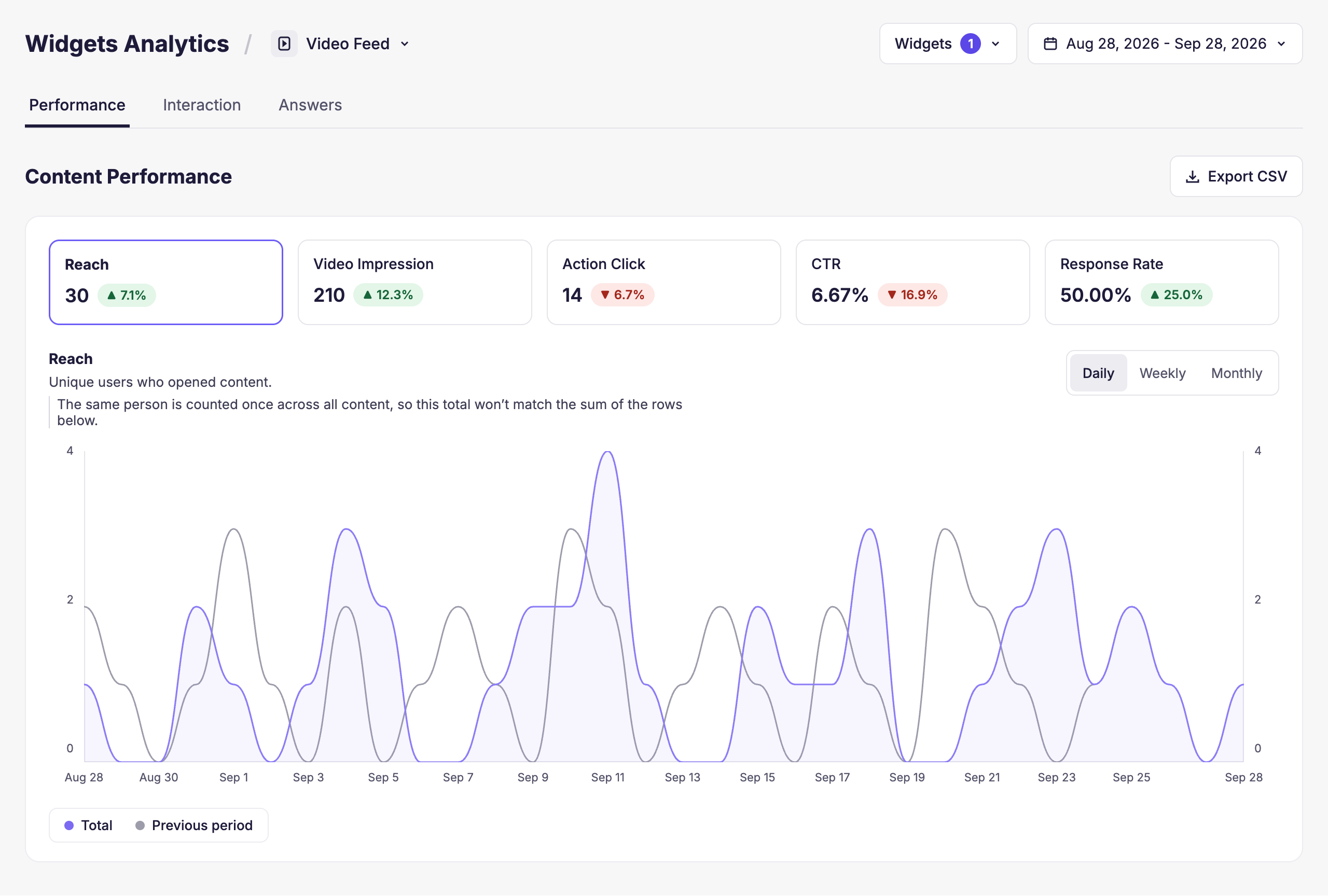
-
Videos table: Each video gets its own row with its widget, placement, platform and status, plus the Content Performance metrics above. Add or hide metrics with Column.
Note:
A video view counts after 2 seconds on screen. Videos longer than 2 minutes counts after 1 second.
Banner
A banner is clicked, not opened: it delivers its message in place, so Widget Performance measures clicks, and the per-slide table shows which banner works best.
-
Widget Performance
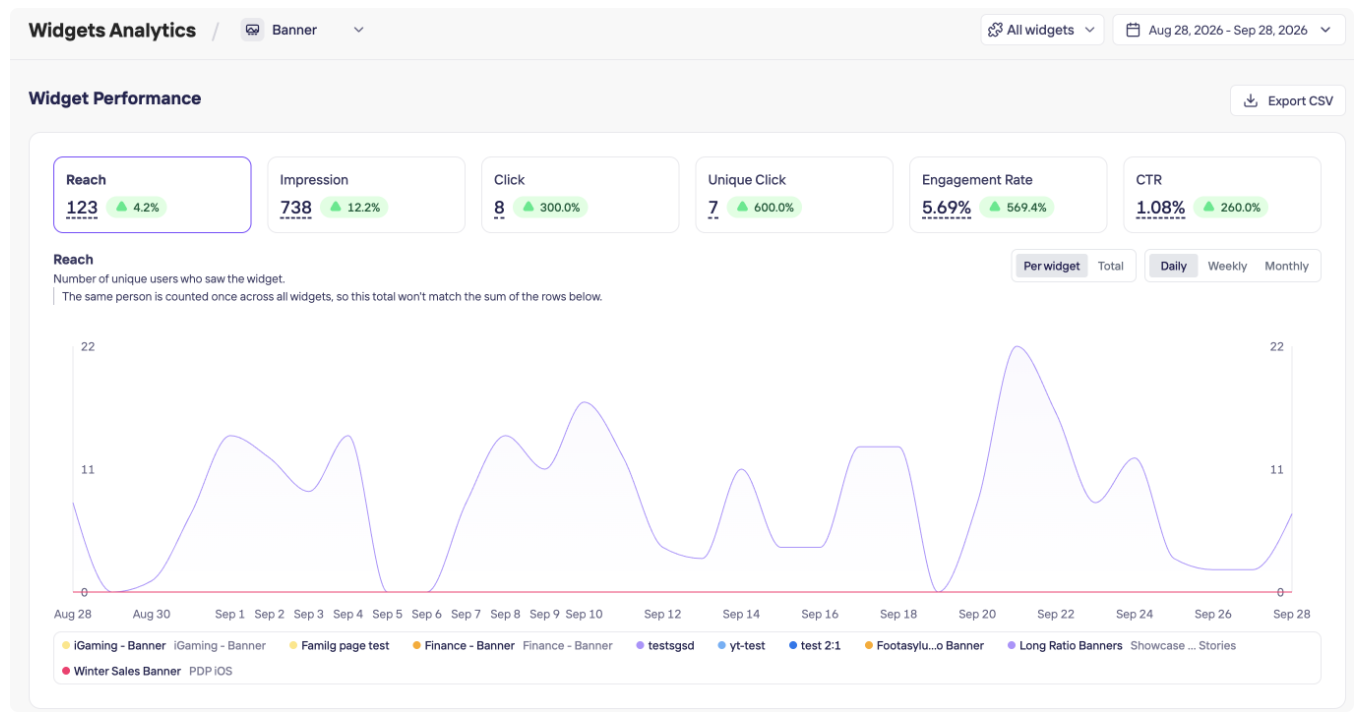
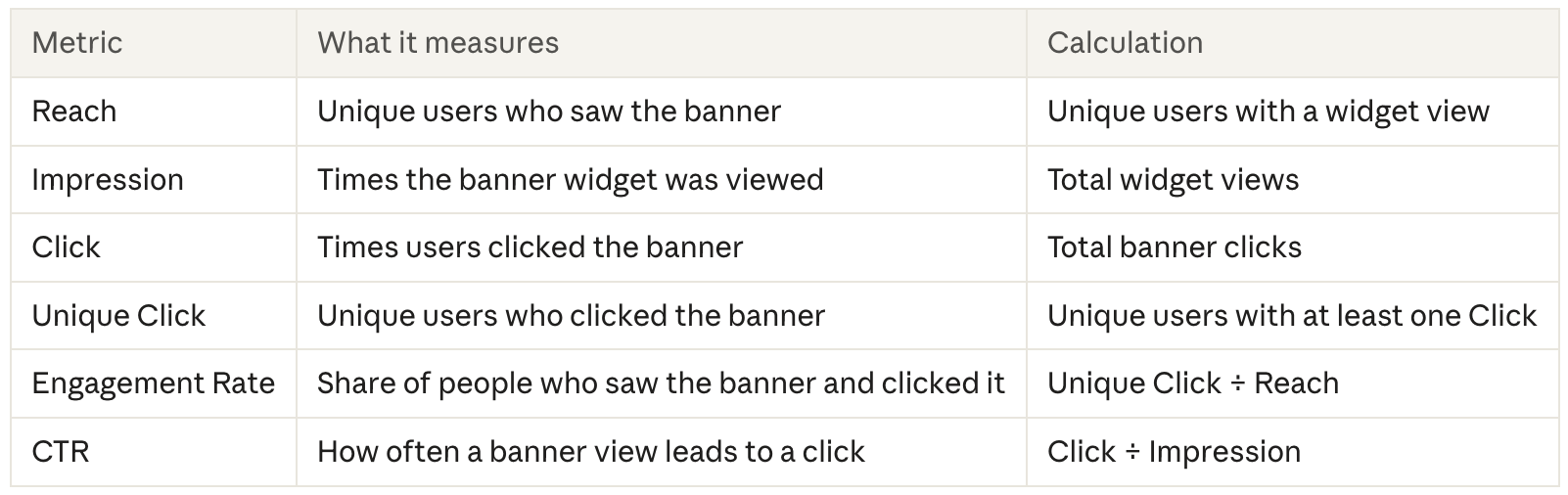
In the example, 7 of 123 people who saw the banner tapped it (Engagement Rate 5.69%), and 8 clicks over 738 impressions gives a CTR of 1.08%.
Banner rates are usually lower than Story Bar rates. Many people read a banner without tapping it, so read Engagement Rate together with Reach.
-
Content Performance
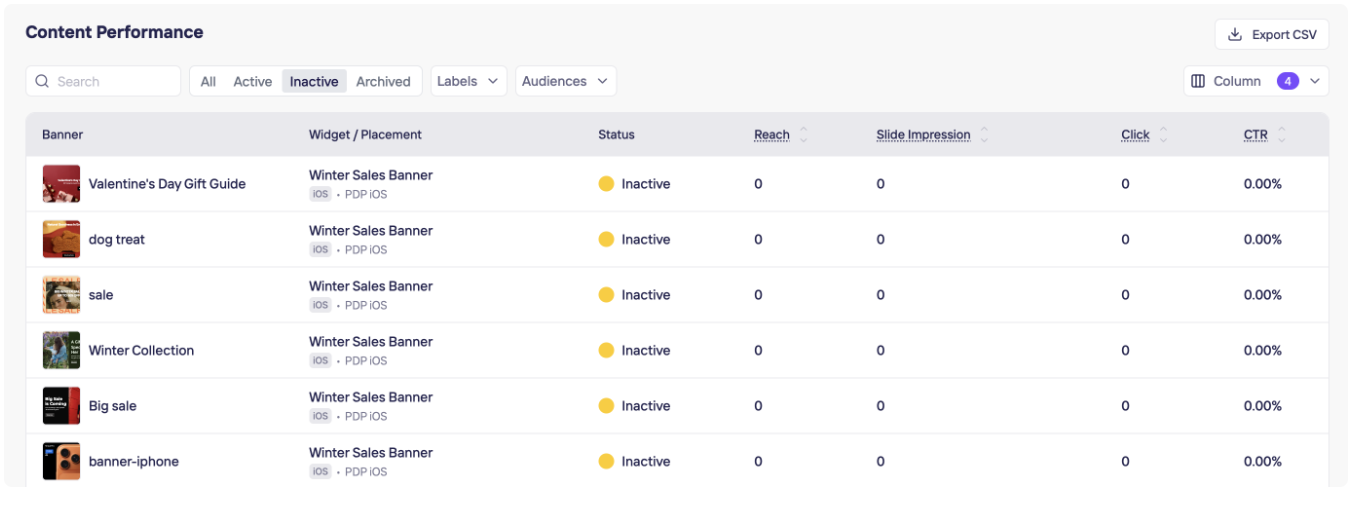
Each banner slide gets its own row. Compare CTR across slides to find your strongest creative.
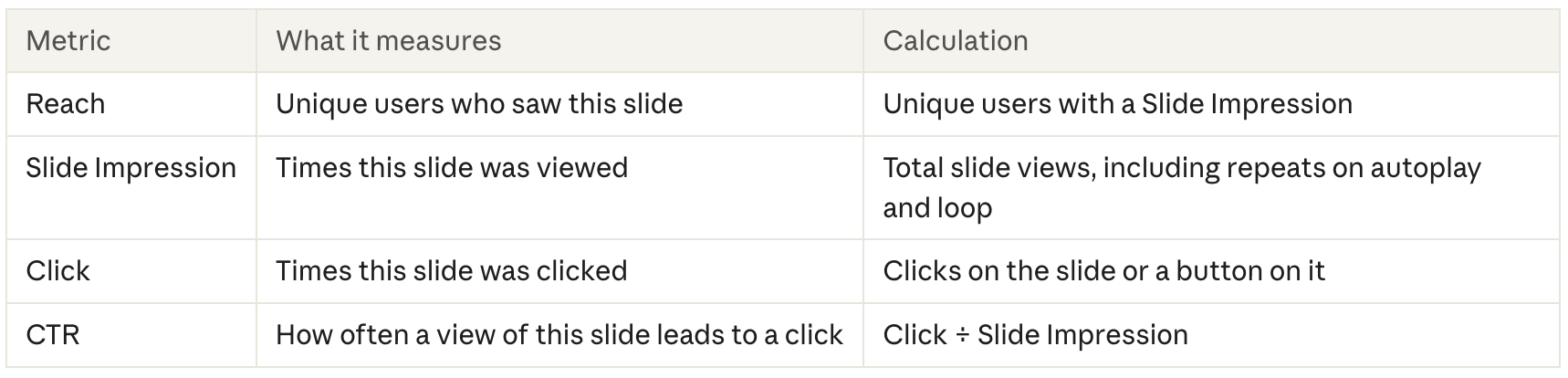
Note:
- A click on the slide and a click on a button on it can't be told apart, so both count as Click.
- Slide impressions can be higher than widget impressions: each slide counts every time it shows, including autoplay and loops.
Swipe Card
In a Swipe Card, both swipes and clicks count as interactions. Widget Performance shows how the stack performs, and the per-card table shows how each card does.
- Widget Performance
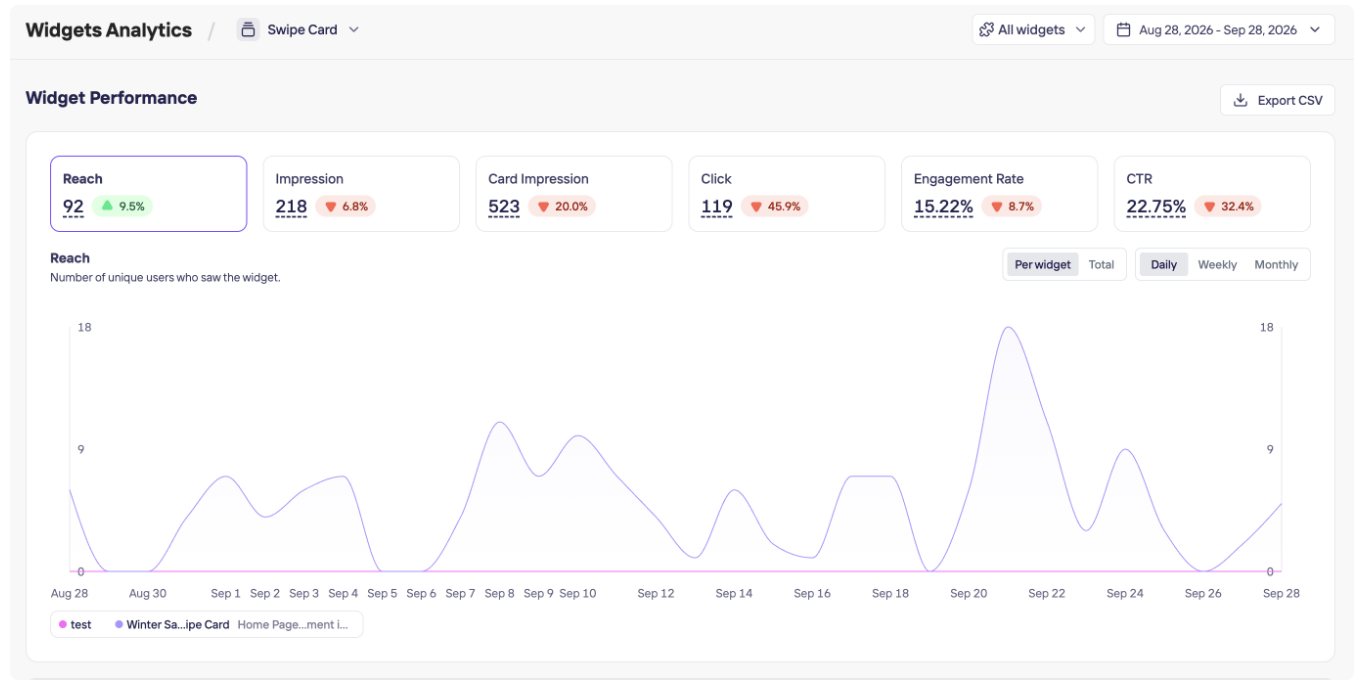
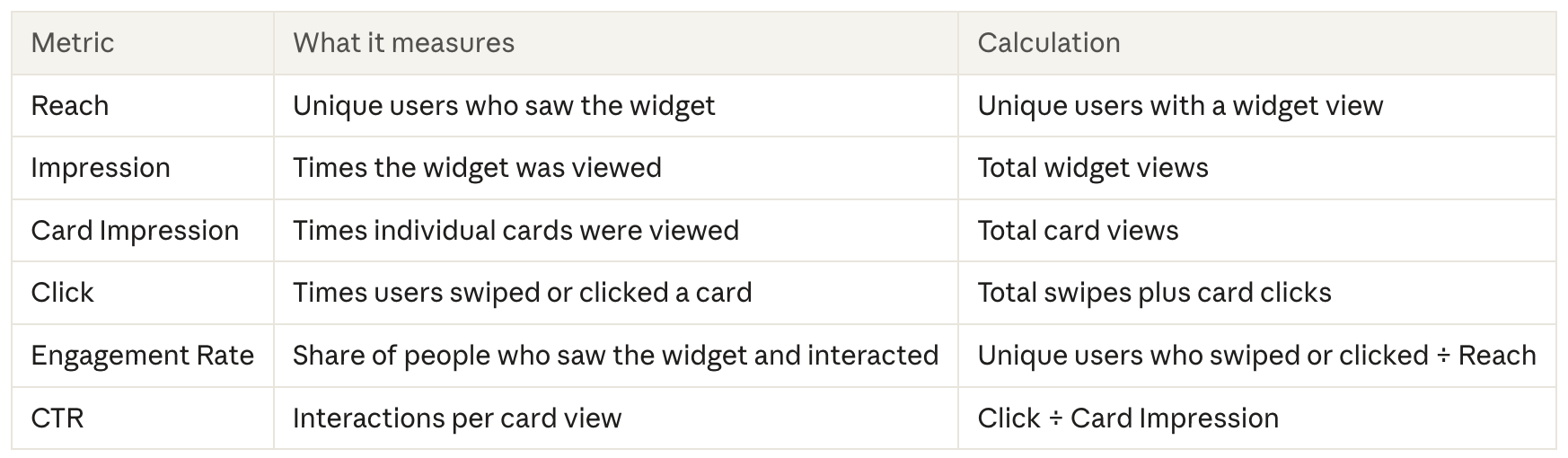
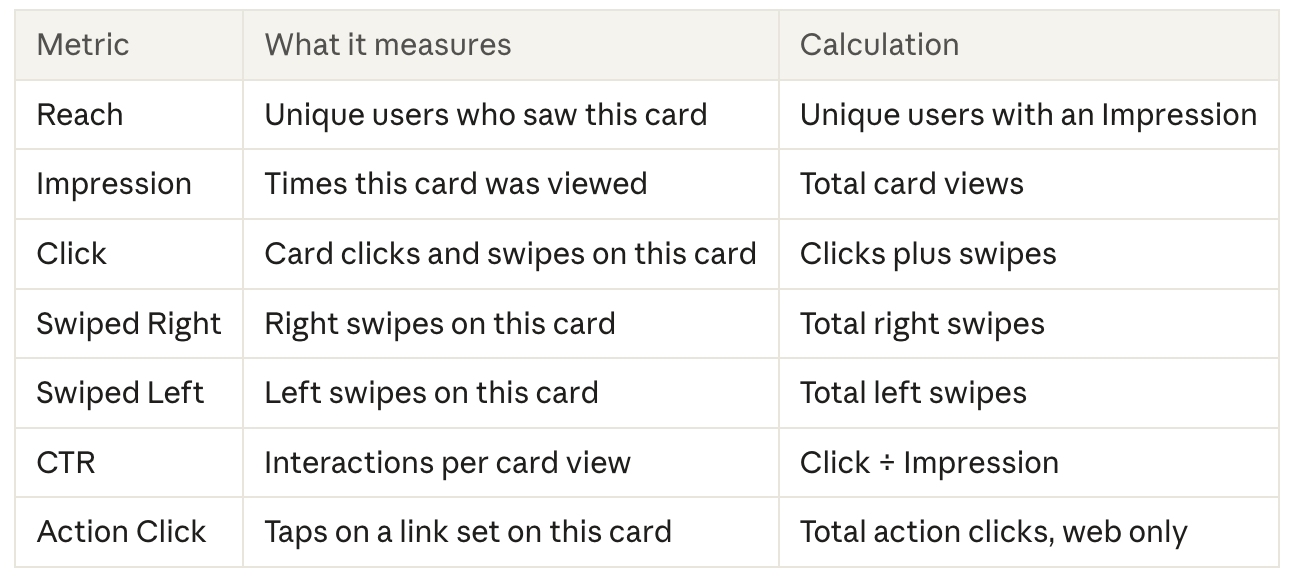
In the example, CTR is 119 clicks ÷ 523 card impressions = 22.75%. Every swipe counts as a Click, so Click can be higher than the number of people who saw the widget.
- Content Performance

Each card gets its own row. Use Swiped Right and Swiped Left to see which cards people prefer.
Note:
- Swiped Right and Swiped Left are also included in Click, so these columns overlap and don't add up to a total.
- CTR can go above 100%, because one card view can produce both a click and a swipe. Action Click comes from web traffic only and is empty for app traffic.
Canvas
Canvas has three levels: the widget, each canvas inside it, and each item on a canvas.
- Widget Performance covers the first, and the per-canvas table covers the rest.
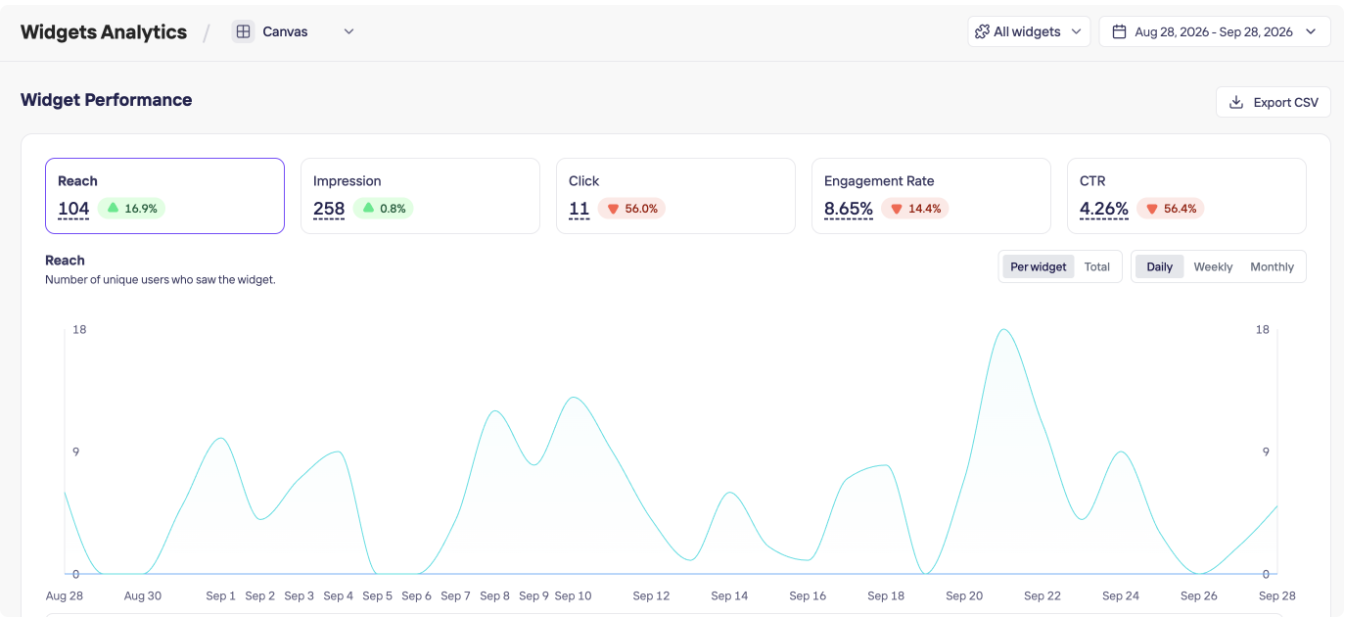
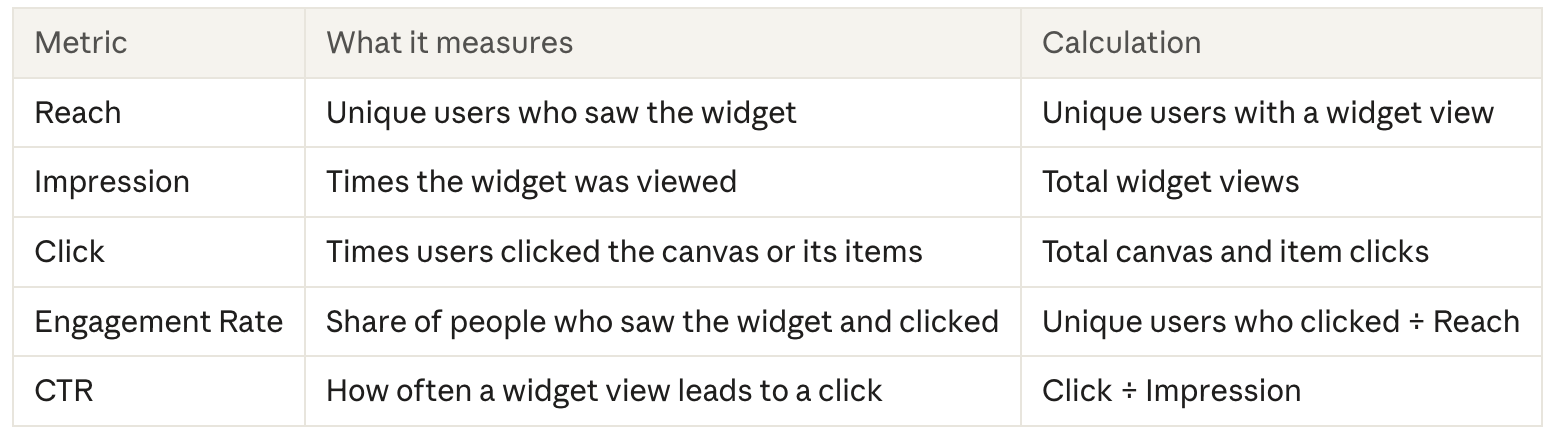
In the example, CTR is 11 clicks ÷ 258 impressions = 4.26%.
- Content Performance
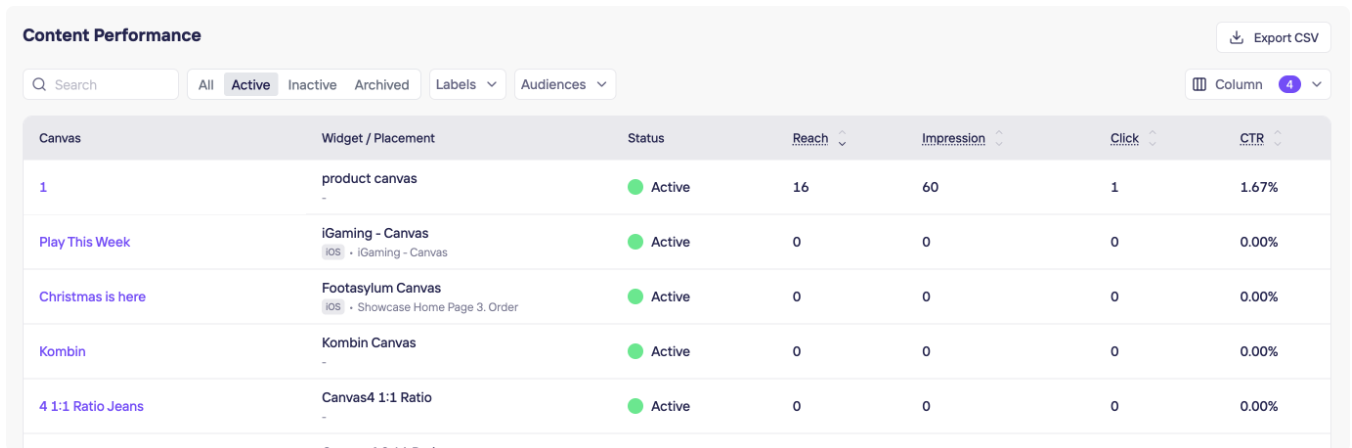
Each canvas gets its own row. Open a canvas to see each item on it.
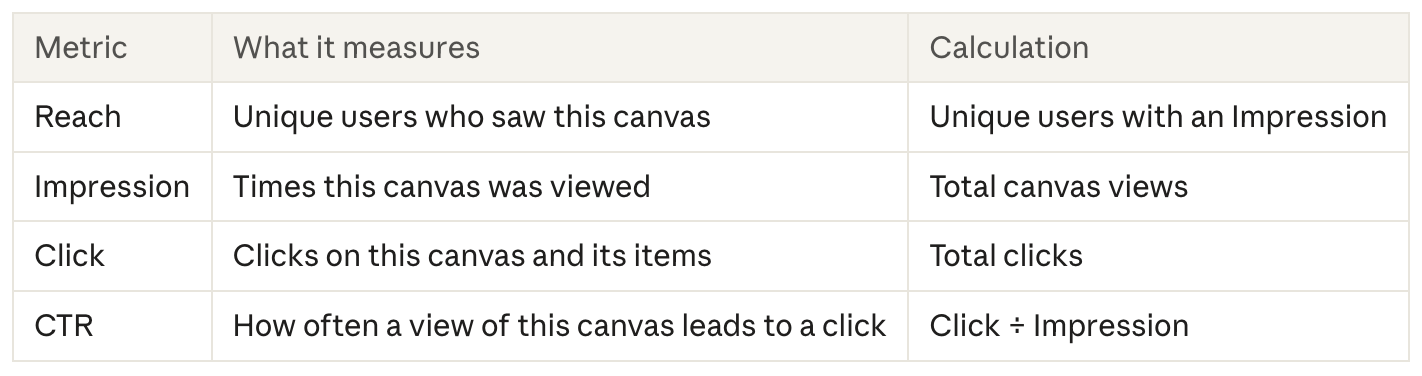
Per item:
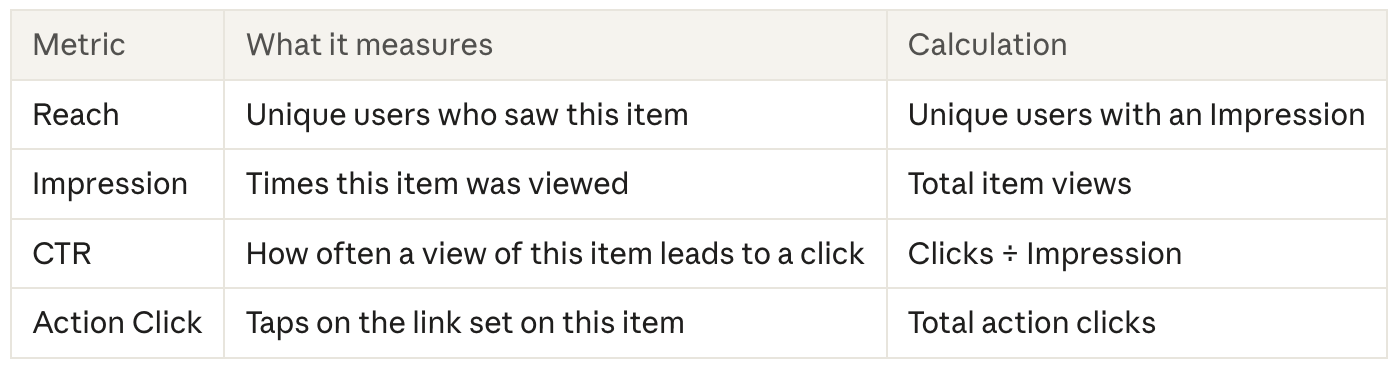
Note
- Per-canvas and per-item data comes only from Storyly Placement SDK 1.16.0 or later. Canvases always appear in the list, but traffic from older SDKs isn't counted in these rows. A canvas whose traffic comes entirely from an older SDK shows 0; mixed traffic shows only the part from the newer SDK.
- CTR can go above 100%, because one card view can produce both a click and a swipe. Action Click comes from web traffic only and is empty for app traffic.
Updated 2 days ago