

Creating Canvas Content
How to create a Canvas?
After adding a Canvas widget at the Widget Library section and defining a design for it, you can go to the Canvas content section to finally create them following the steps below:
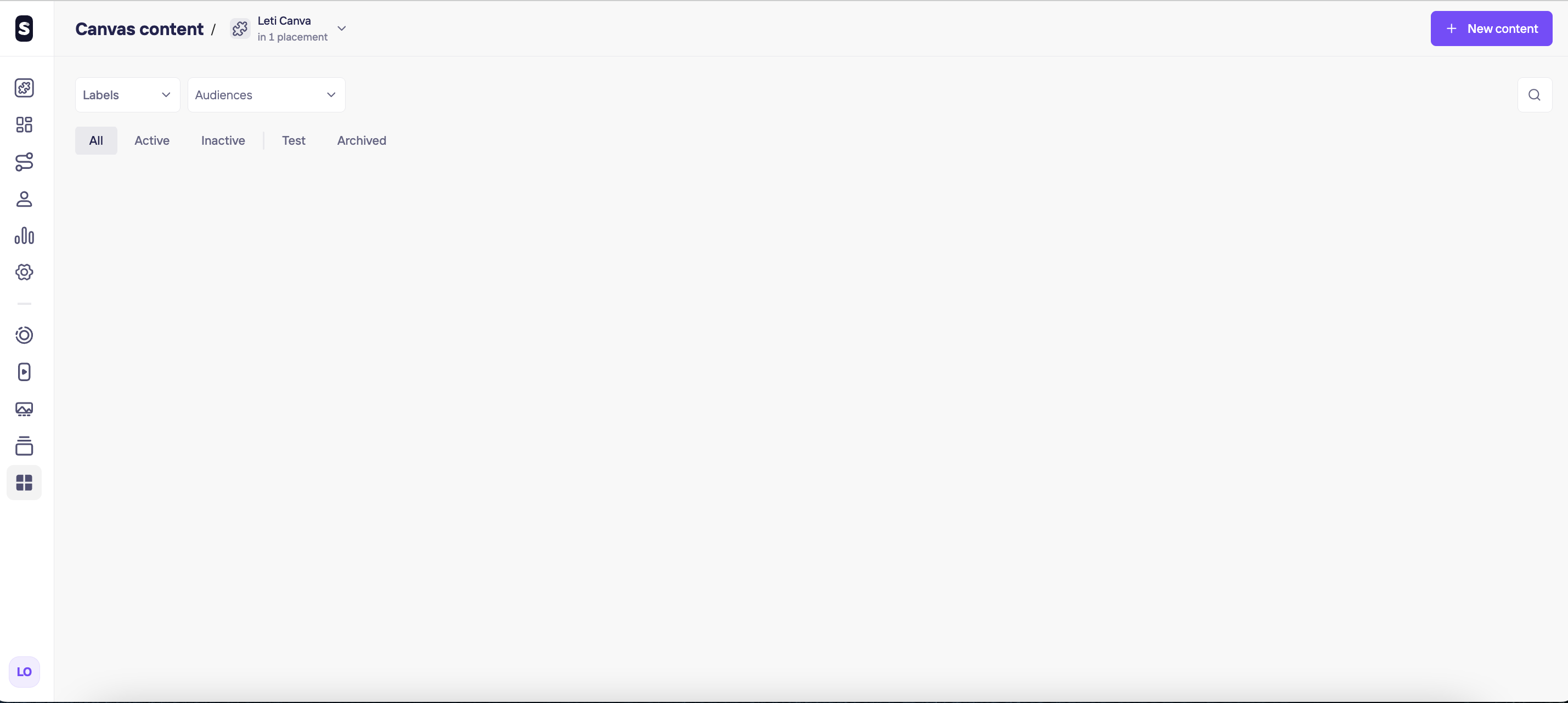
Click on + New content button at the top left.
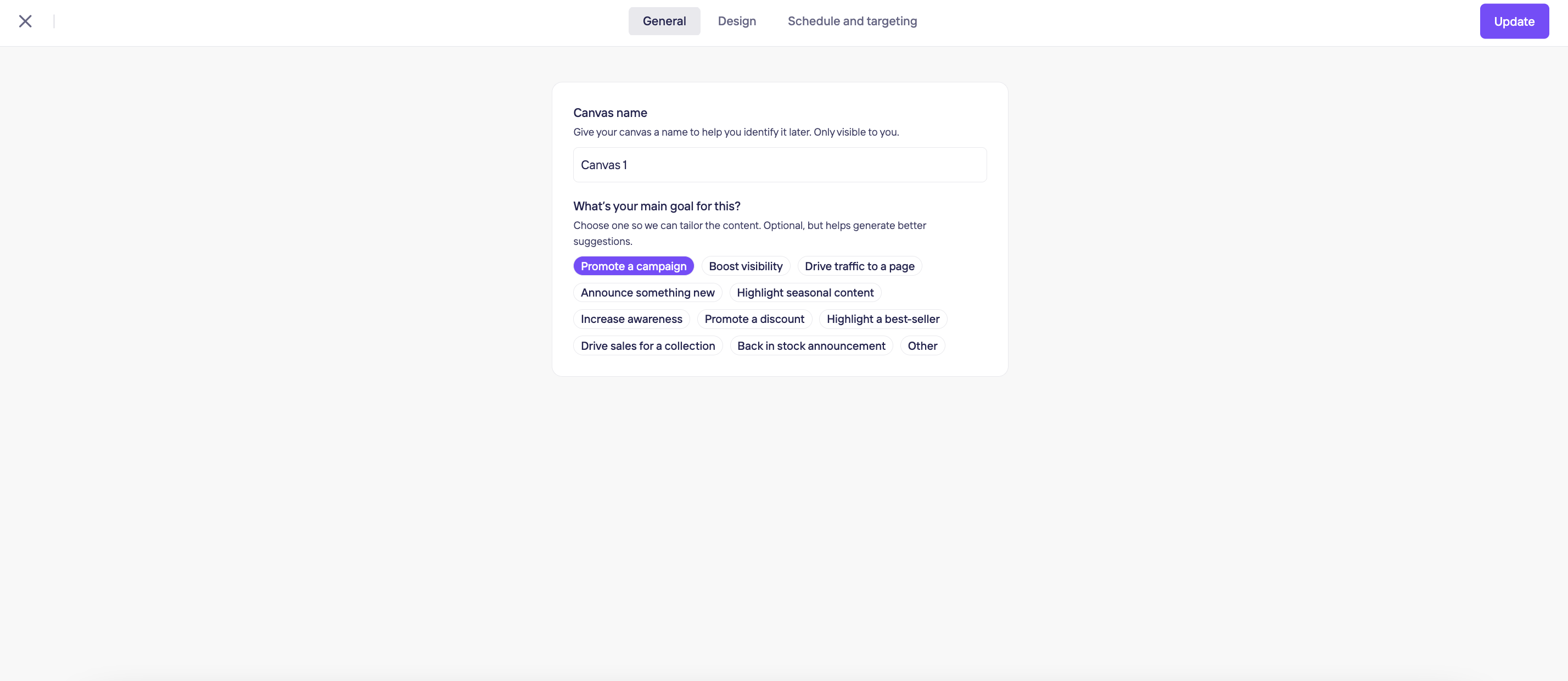
Step 1 of 3: Set up your canvas
- Name your canvas: Give your canvas a name to help you identify it later; this is only visible to you.
- Choose a goal: Select your main goal so we can tailor the content. This part is optional but helps us generate better suggestions.
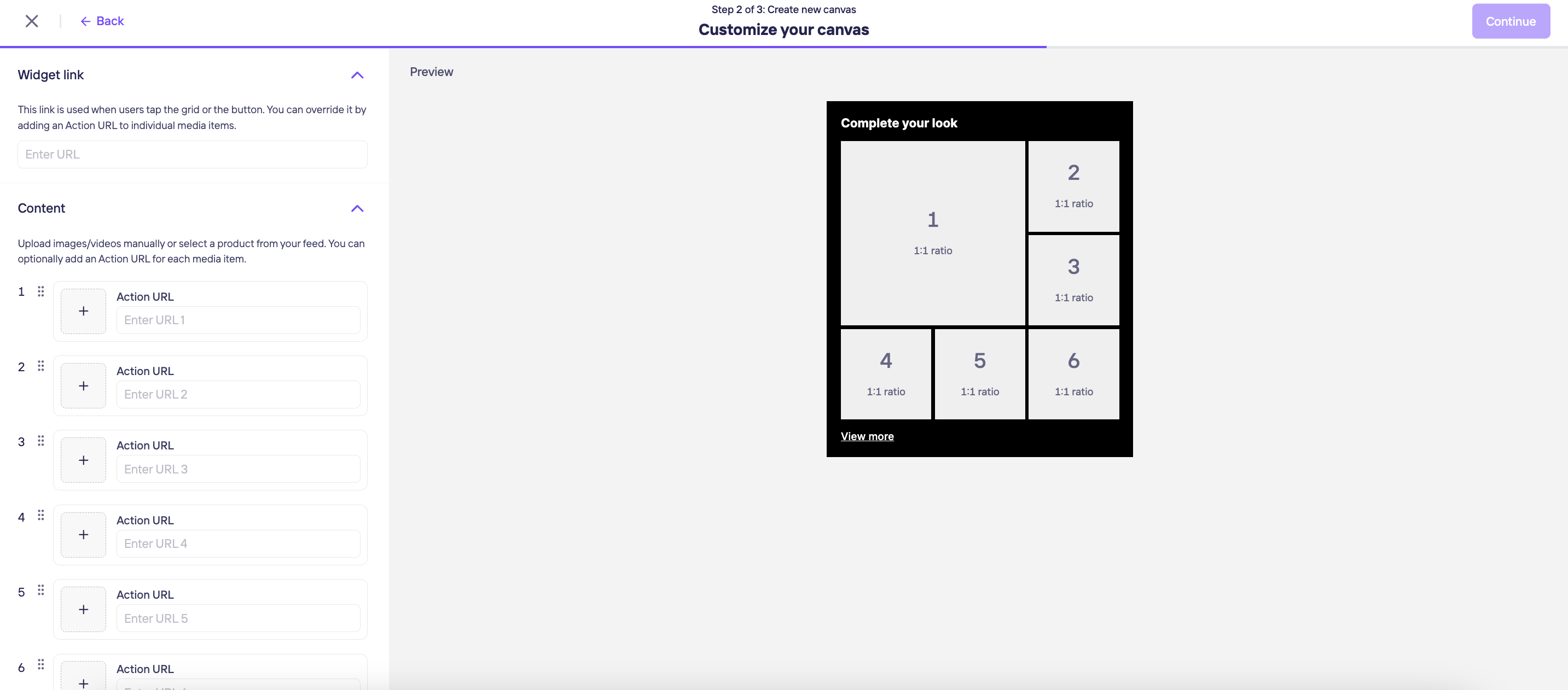
Step 2 of 3: Customize your canvas
In this step, you will fully customize your canvas content:
- Widget Link: This is the default link used when users tap the grid or the button. You can override this by adding a specific Action URL to individual media items.
- Content: Upload images and videos manually or select products from your feed. You can optionally add an Action URL for each media item.
- Appearance: Define a title for your canvas and customize the CTA button below.
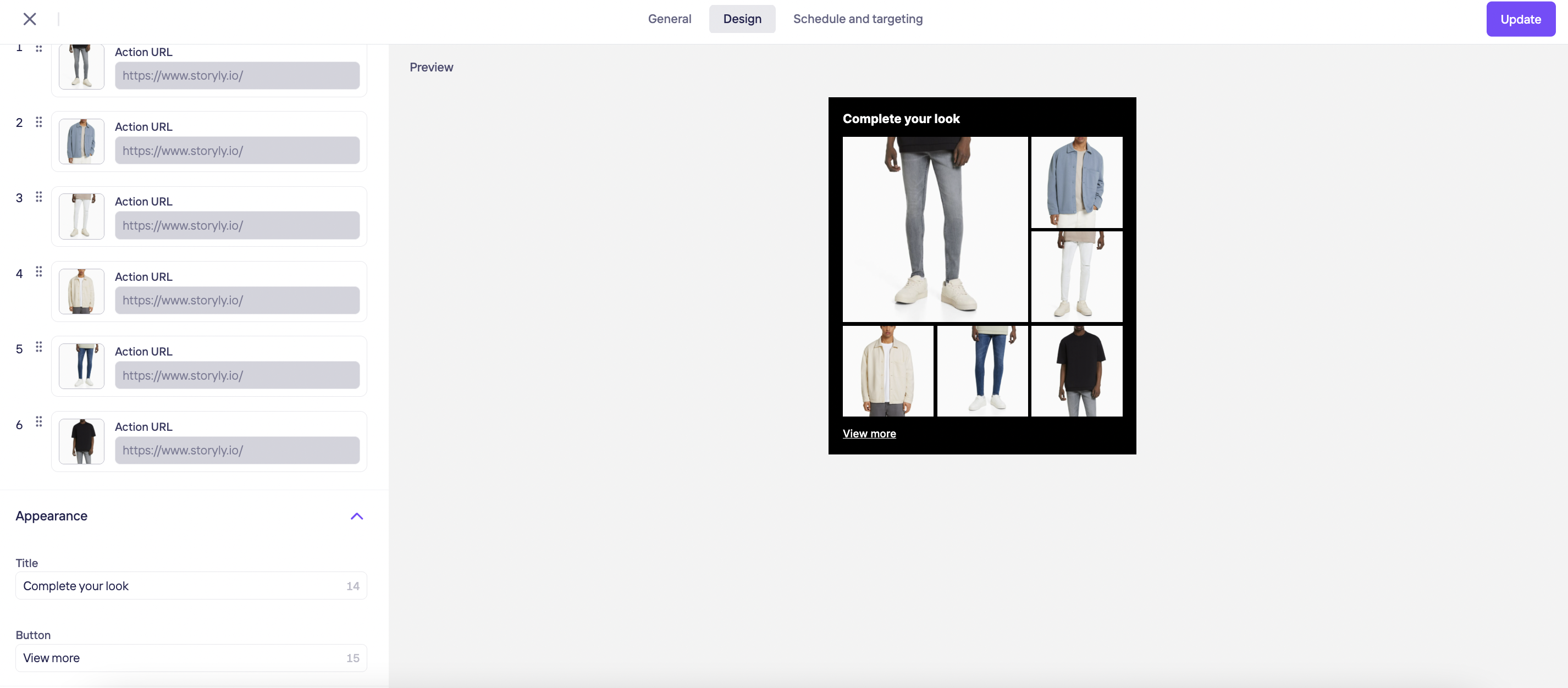
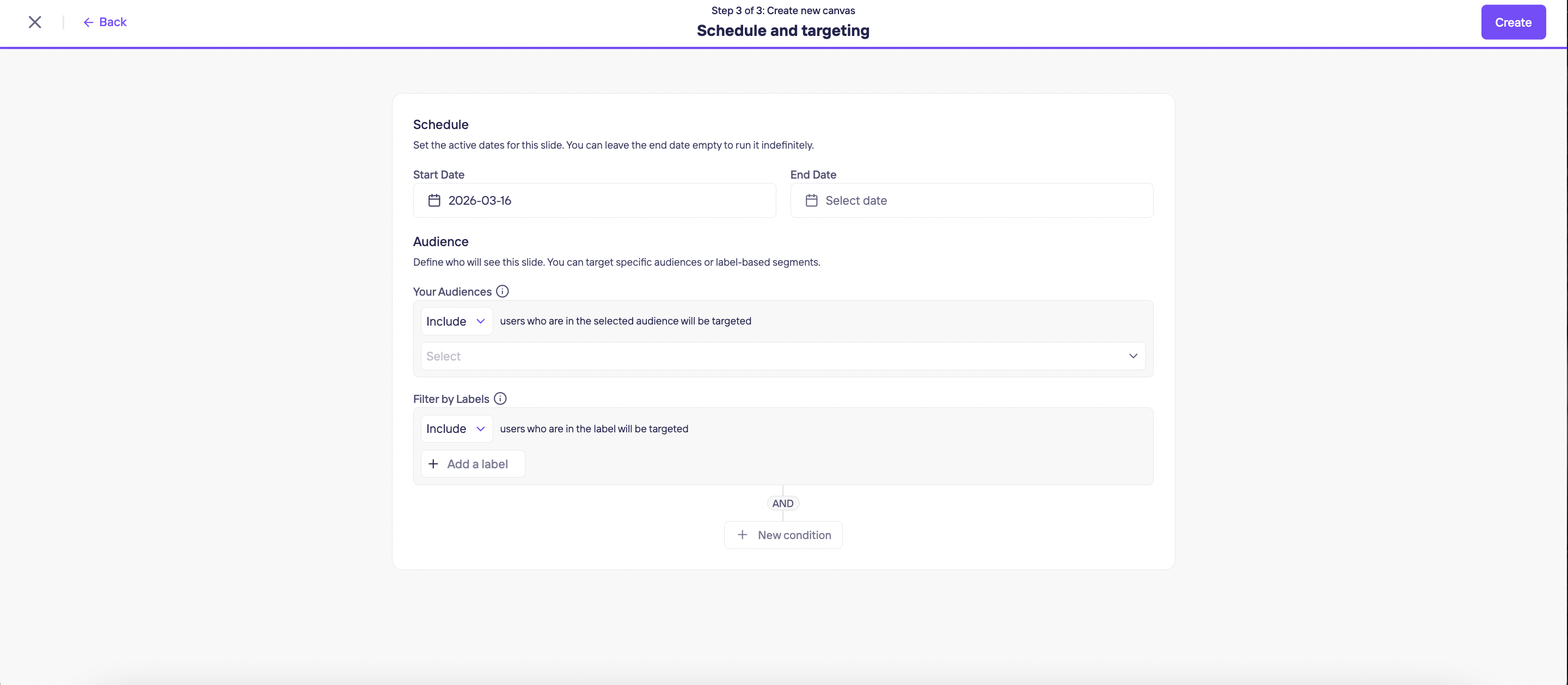
Step 3 of 3: Set schedule and targeting
- Schedule: We provide full flexibility for your content timing. You can adjust the Start and End Dates here. If no end time is set, the content will remain active indefinitely.
- Audience: Target specific user segments using either Labels or Audience structures.
- Once you are done editing, click the Create button in the top-right corner.
You can now manage all your created canvases under this widget by dragging to reorganize, activating or deactivating as needed, or archiving items if you wish to eventually delete them.
Note:
You can delete any content in the Archive section. If you delete them all analytics data related to that content will be deleted as well. You can keep them in the Archive section to have a much lighter dashboard experience and unarchive them back always when needed. If you still want to delete them, remember you should first Archive them > Go to the Archived section > Click on the canvas three dots > Click on Delete.
Updated 7 months ago