

Creating a Canvas Widget
How to create a Canvas Widget?
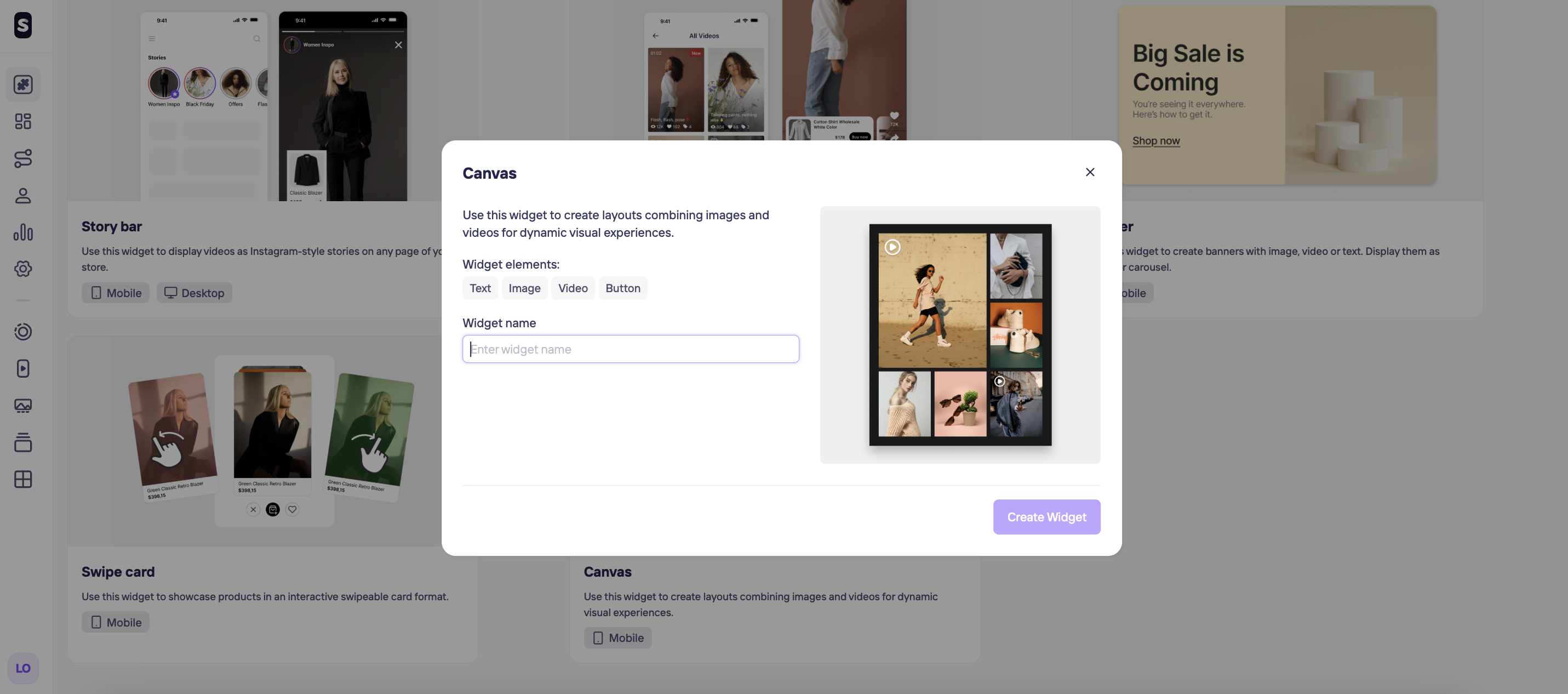
A Canvas is a Pinterest-like mosaic of clickable thumbnails in a single frame, letting shoppers scan a variety of items and tap any tile to jump straight to the story, vídeo feed, product page, or promotion behind it. You can use this widget to create layouts combining images and videos for dynamic visual experiences.
Create a Canvas Widget
For creating a Swipe Card widget, click on + Create widget in the top left corner and chose the Swipe Card option. The next steps will be giving a unique name to help you identify it later and hit Create Widget button.
Edit Canvas Widget Design
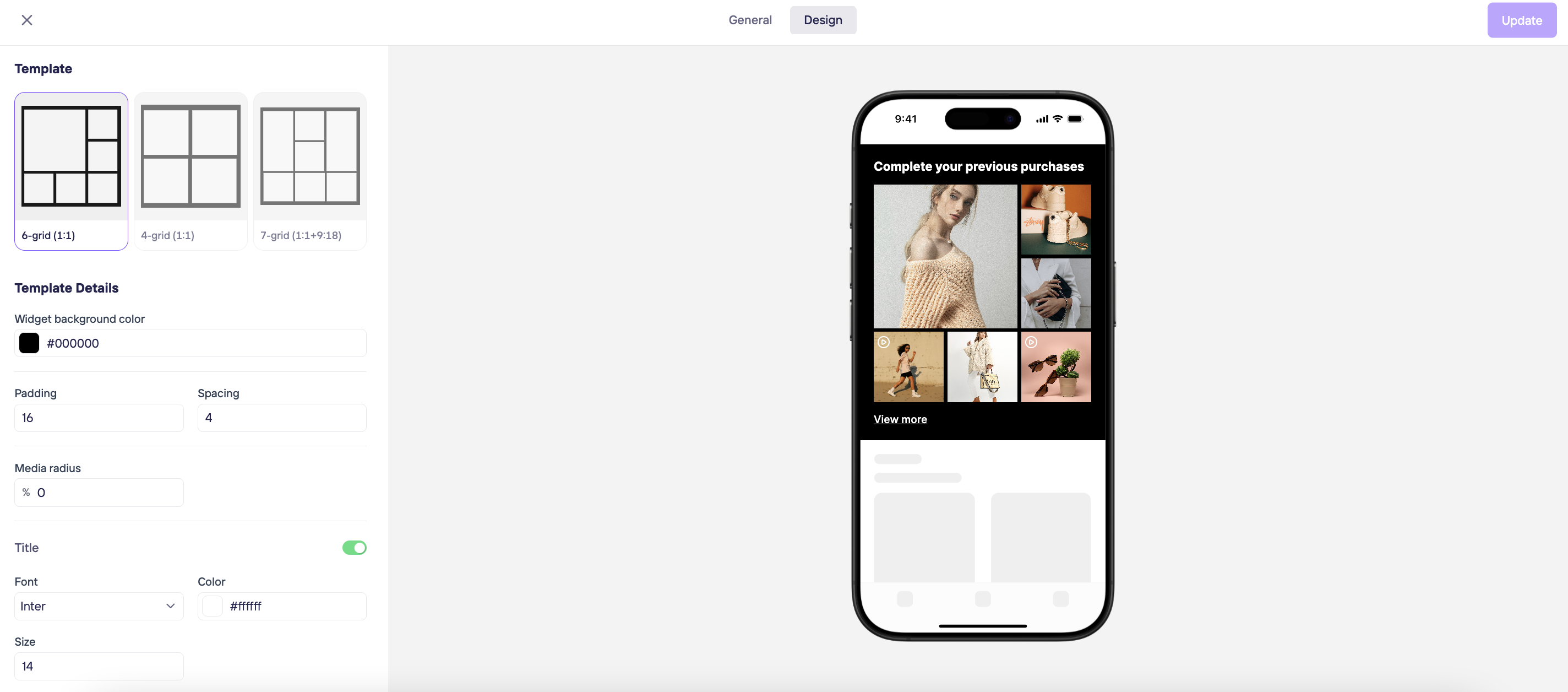
Click on your newly created widget to open the editor. From here, you can customize the following template details:
- Background Color: Select a color for the widget container.
- Layout & Spacing: Adjust the Padding (inner space), Spacing (distance between tiles), and the Media Radius to refine the mosaic look.
- Header Settings: Add a title and customize its font size and color to match your brand.
- Call-to-Action (CTA): Enable a CTA button and adjust the text, color, and size to drive higher click-through rates.
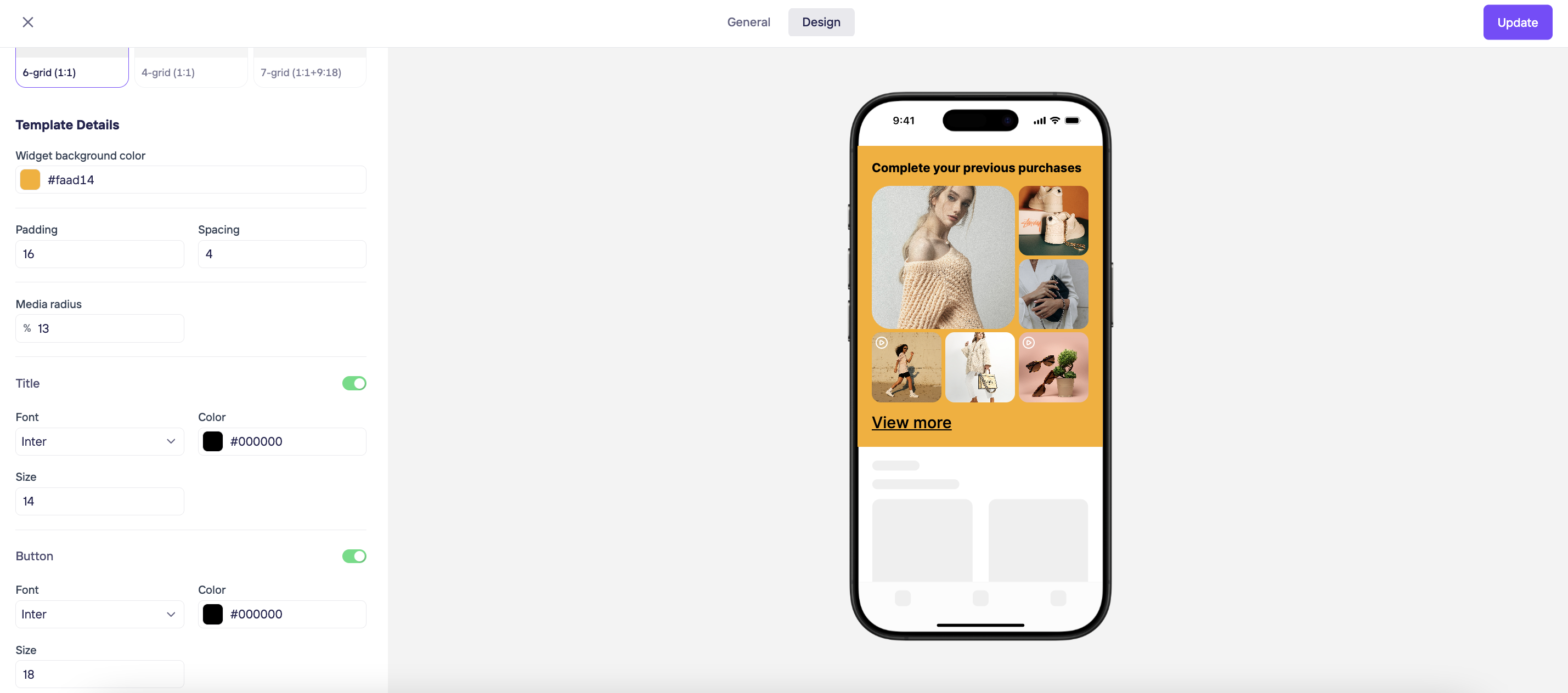
Once you are done, click on Update on the top right corner.
Updated 7 months ago