

Creating a Banner Widget
How to create a Banner Widget?
A banner in a nutshell, is a slim strip element with interactive components for flash deals, increase awareness, low-stock alerts, shipping nudges and many other goals. You can display them as a single banner (static) or carousels (dynamic).
Use can use this widget to create banners with image, video or text. Display them as singles or carousels.
Create a Banner Widget
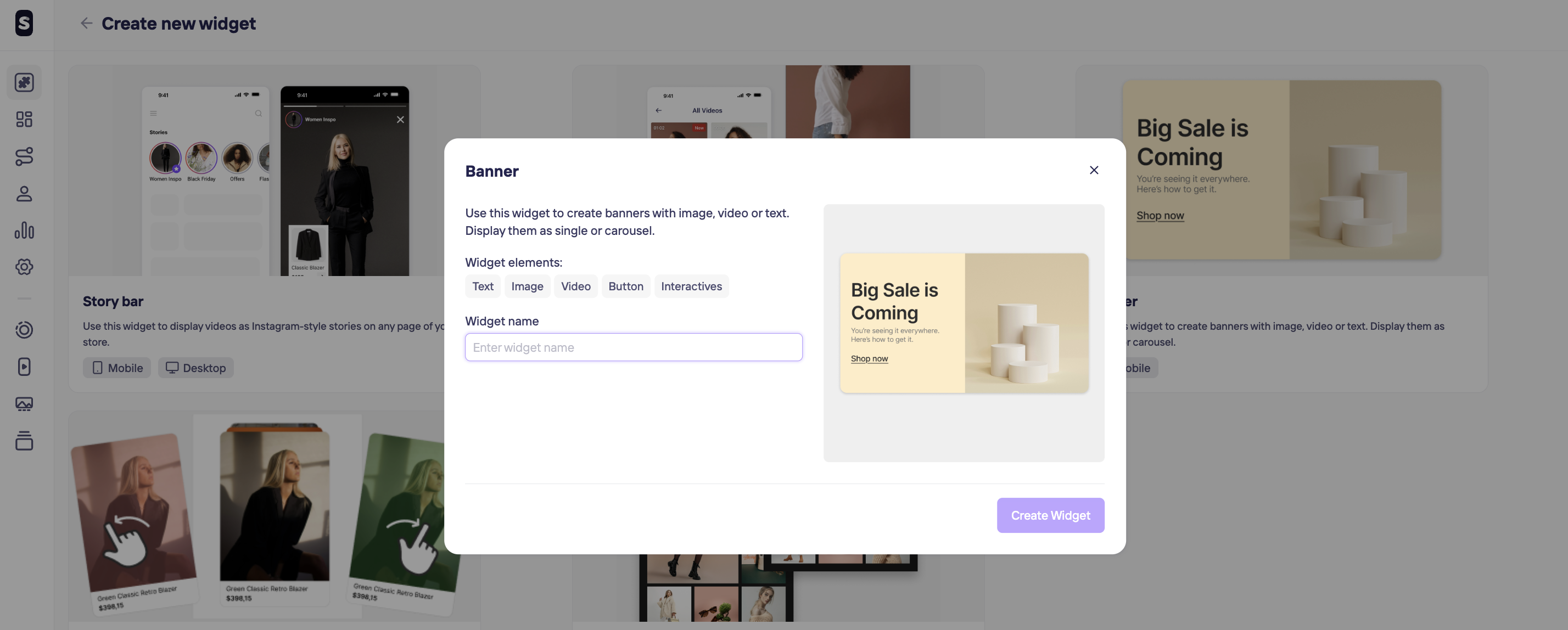
For creating a Banner widget, click on + Create widget in the top left corner and chose the Banner option. The next steps will be giving a unique name to help you identify it later and hit Create Widget button.
Edit Banner Widget Design
After creating your Banner widget, you can click on them to choose a template and edit their layout according to your brand. You can also delete them if you need it.
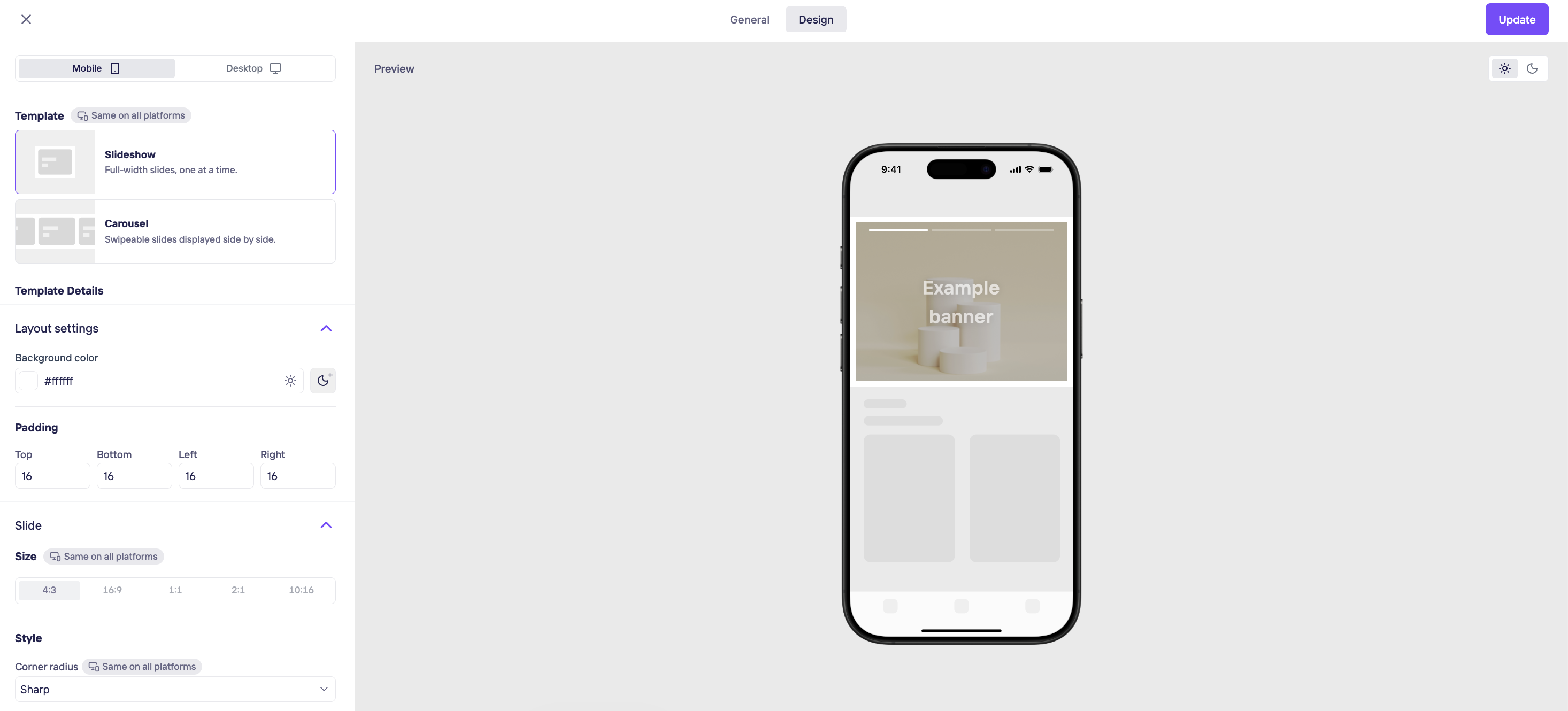
By clicking on Edit design, you decide on your template Ratio, Shape, Progress style (if you use a carousel) and Autoplay seconds.
Template:
- Slideshow: this format displays full-width slides one at a time
- Carouse: this format displays your slides side-by-side, giving users a partial peek at the next ones.
Layout settings:
- You can select a background color
- Adjust padding and slide ratio (4:3, 16:9, 1:1, 2:1 or 19:16)
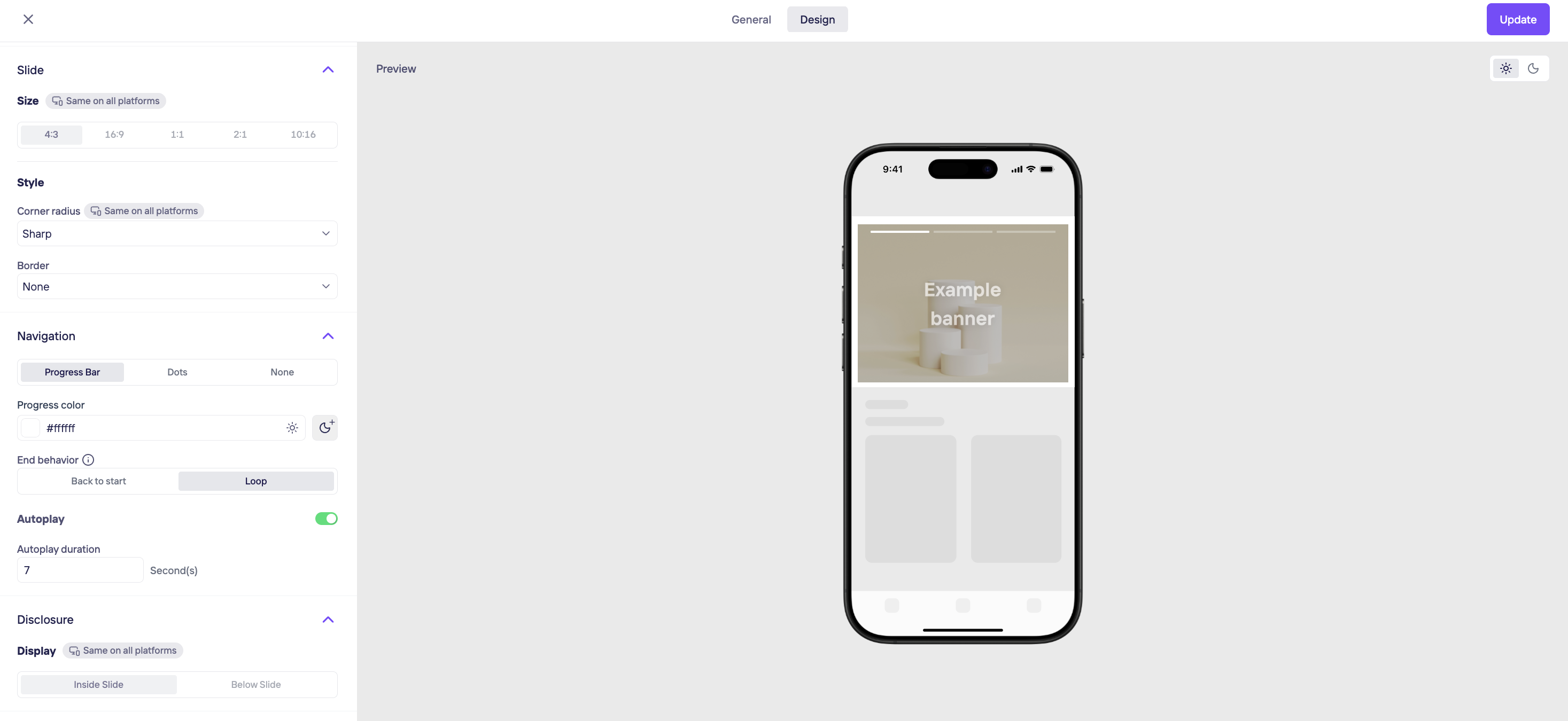
- Shape of the corners: Sharp, Soft, Rounded or Playful
- Add borders: Thin, Regular or Thick
- Navigation: add progress visual elements, it can be aProgress bar or Dots, that is filled with color to show users how many slides we have and the time remaining to move to the next one
- Autoplay: how many seconds to move automatically to next banner part of the carrousel
- Loop Option for End Behavior: once the last slide finishes, the Banner returns to the first slide or the Banner continues forward into the first slide without interruption, for a continuous scroll
- Disclosure: you can add a dedicated Disclosure field to your Banner widgets—perfect for "Sponsored Content" labels, "Terms and Conditions," or any mandatory legal notices. This ensures you can deliver the necessary "fine print" without sacrificing the visual impact of your content. You’ll find these new settings in the widget editor when creating or editing your Banner slides.
Once you are done, click on Save and exit button on the top right corner.
Updated 3 days ago