

Creating Video Feed Content
How to create a Video Feed experience?
Once you have a Video Feed widget added at the Widget Library section and defined the Settings, you can go to the Video Feed content section to finally create a TikTok-like endless scroll of short videos experiences.
Let's get into it!
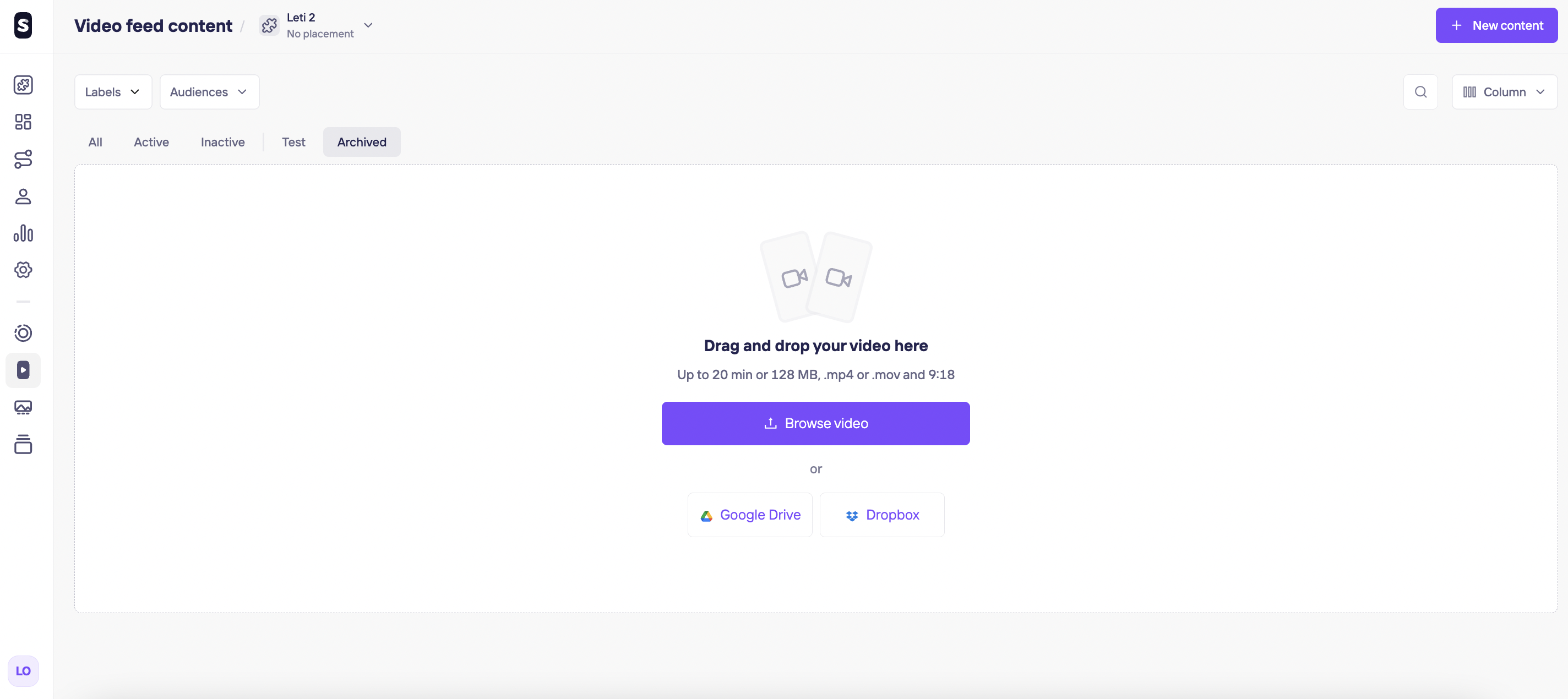
- Click on + New content button at the top left.
- You choose one of the options available (Add Video, Add Image Folder, Import from Instagram or TikTok). Other options are: drag and drop your video, browser in your computer or bring them from Google Drive or Dropbox.
-
Click on Add Action to add CTAs or click on the three dots and then Go to Studio to place other interactive elements.
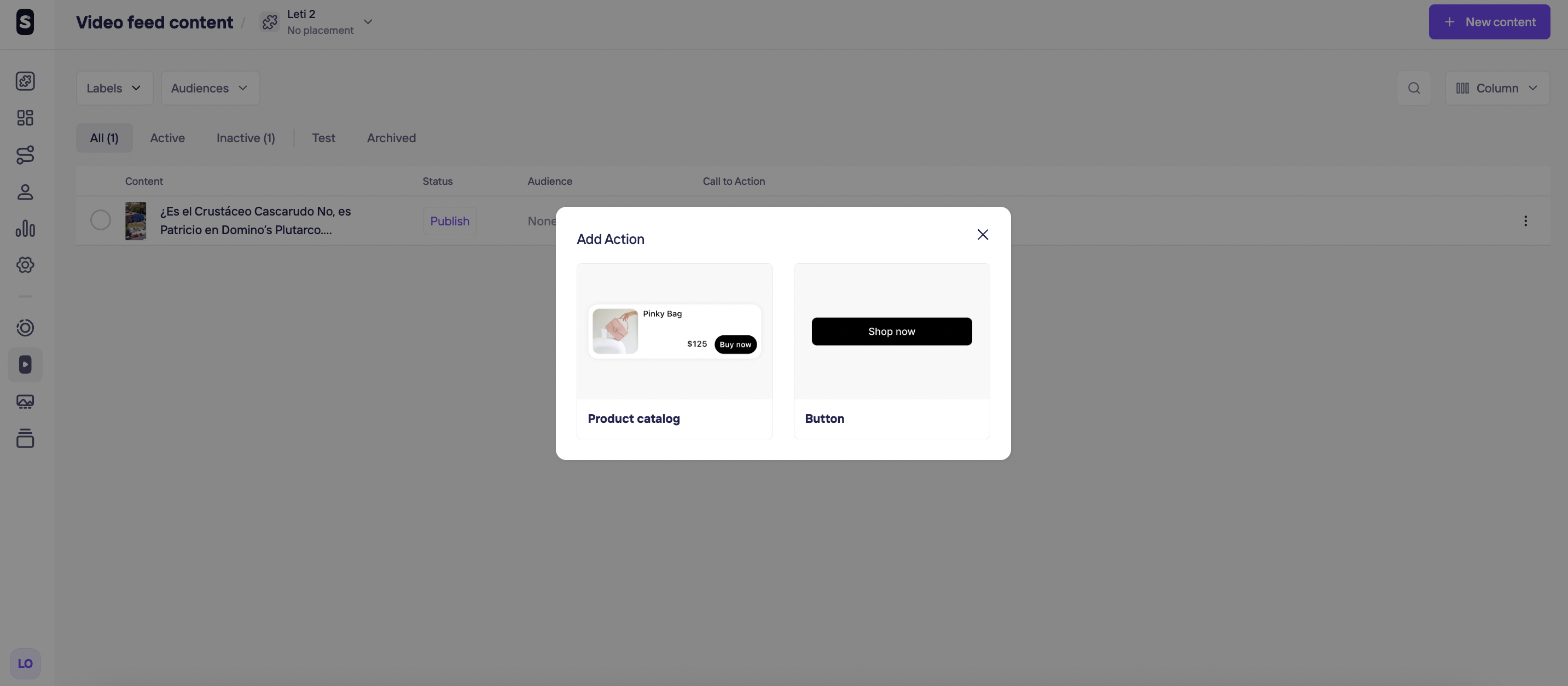
-
Once you are done, you can select one or multiple videos to see extra set up options:
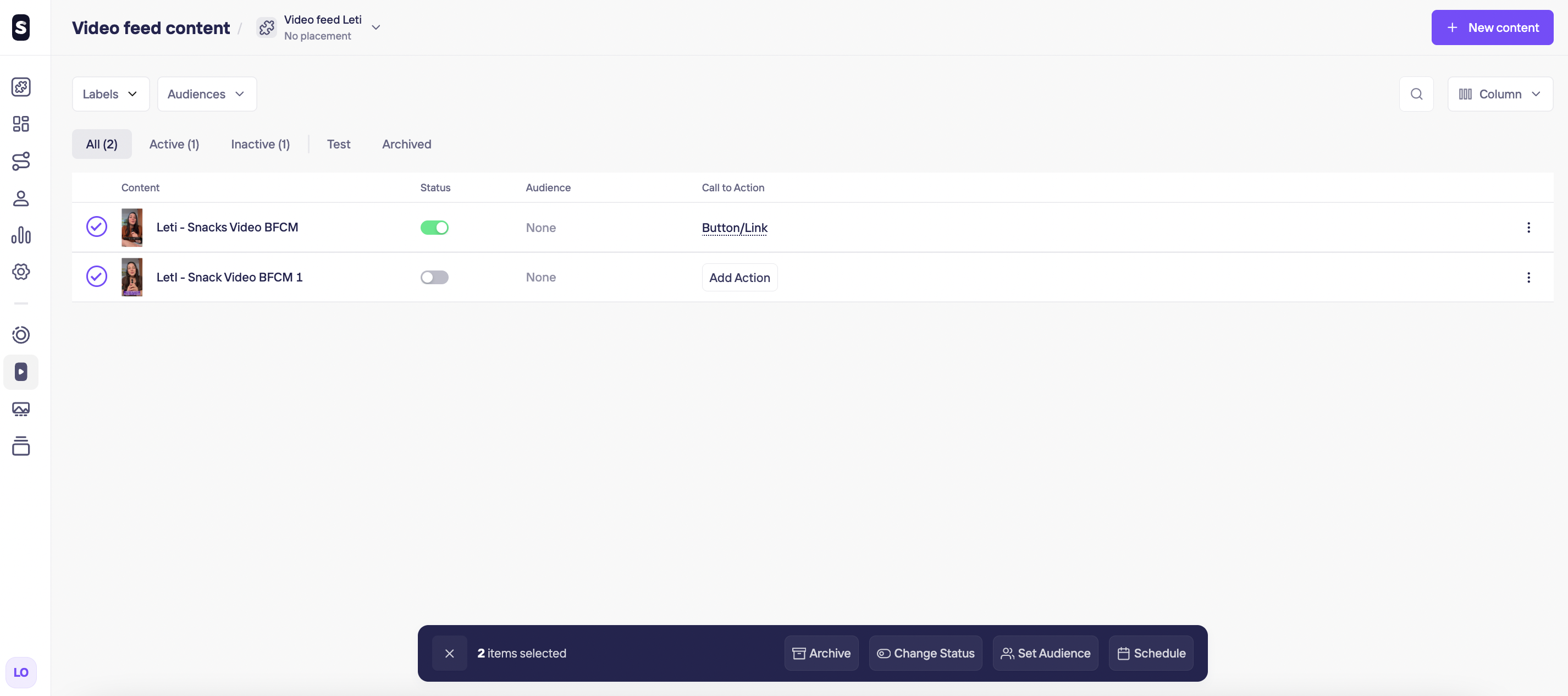
- You can Set Audience to target different users’ segments.
Detailed explanation can be found in the [Targeting] Section. - Storyly always provide you flexibility with the timing. You choose a start date and if you don't set a specific end time, they'll be there forever. You can adjust the Start and End Dates under Schedule.
- Change status to Active, Inactive or Archive the content, if you don’t need them more.
Note:
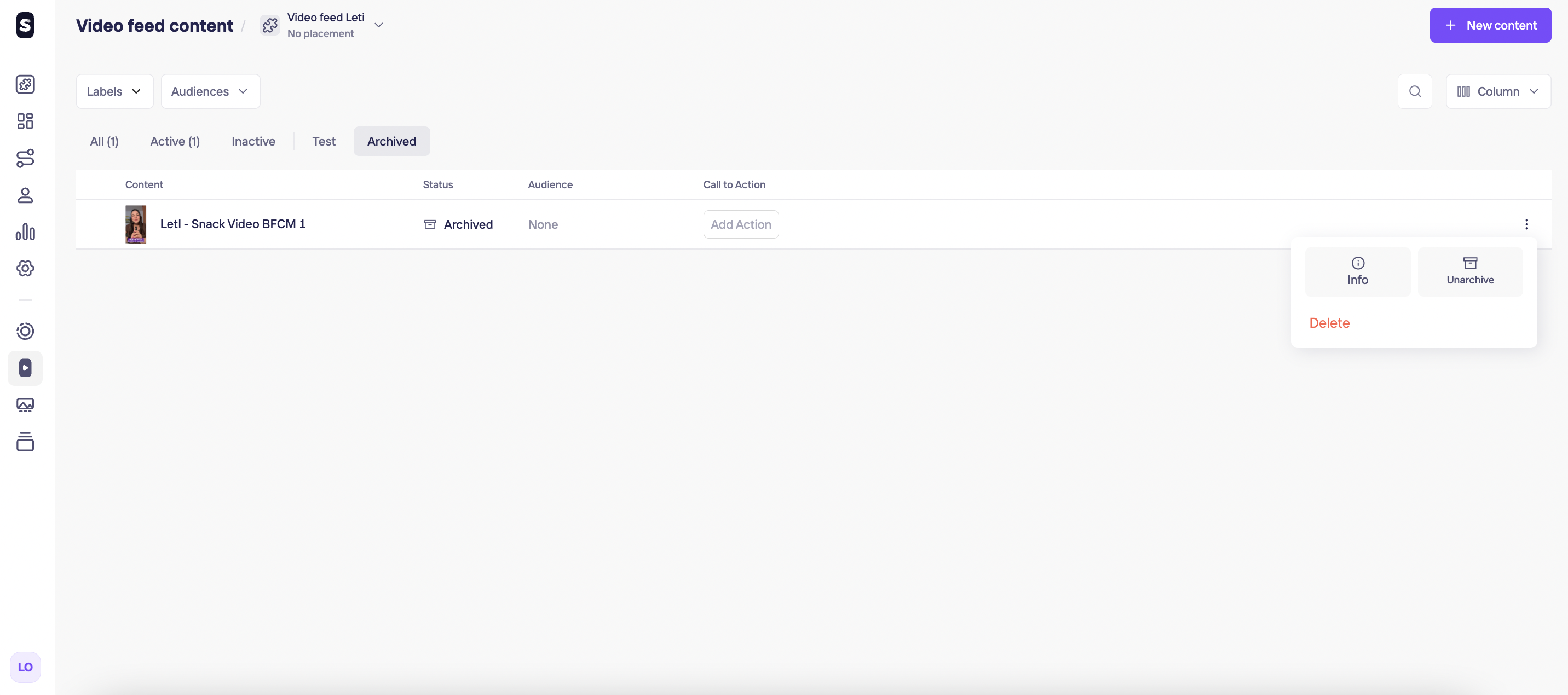
You can delete any content in the Archive section. If you delete a vídeo all analytics data related to that content will be deleted as well. You can keep them in the Archive section to have a much lighter dashboard experience and unarchive them back always when needed. If you still want to delete them, remember you should first Archive them > Go to the Archived section > Click on the video three dots > Click on Delete.
Updated 10 months ago