
Targeting with Labels
This guide shows how to target user segments with Labels when using Storyly Placement SDK on iOS.
Before you begin
Make sure you have a working Storyly Placement SDK integration (token, view, provider) as described in the Initial Setup.
Setup Labels in Storyly Dashboard
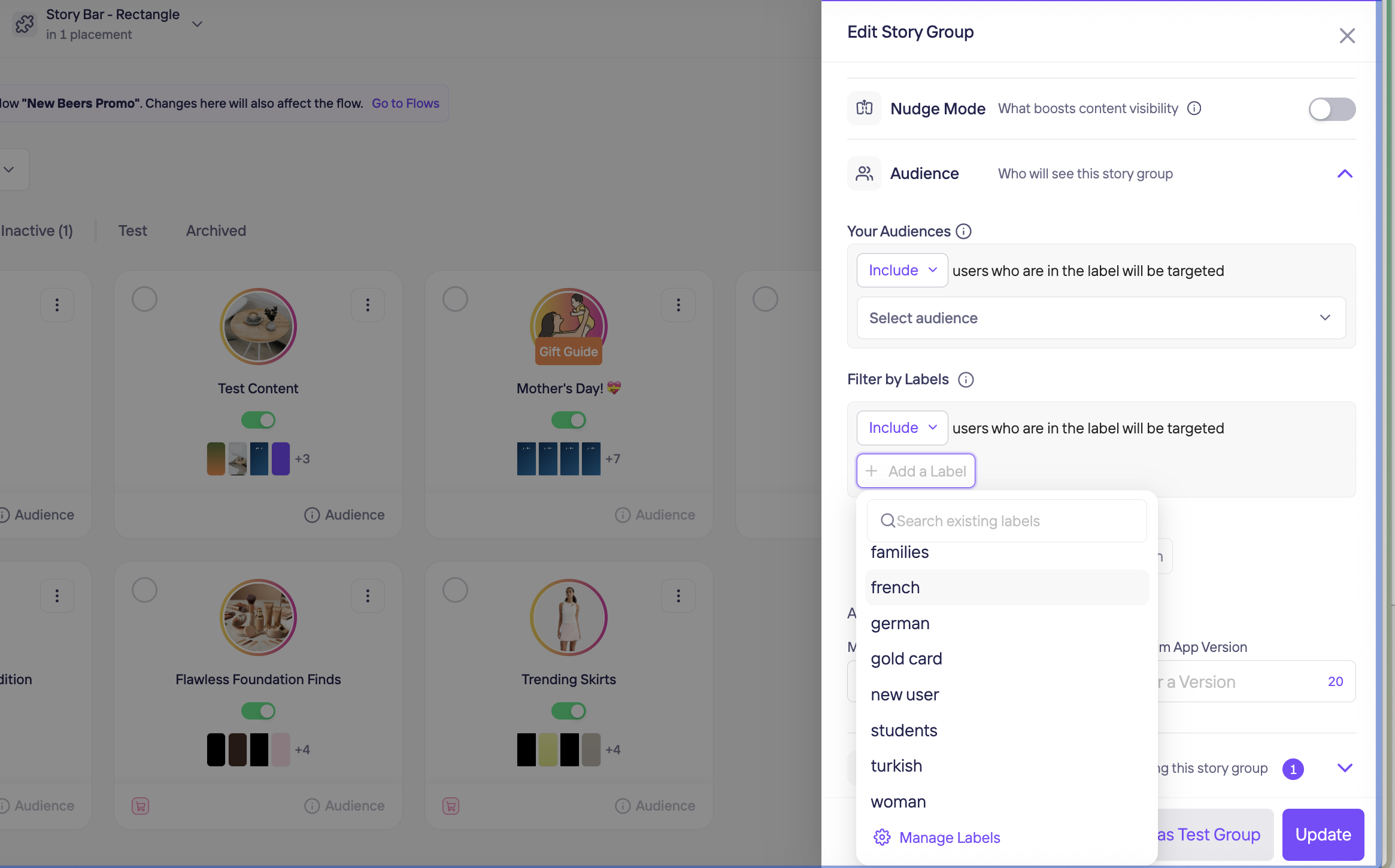
In the Storyly Dashboard, while creating story groups, you will see an option called Audience. Here you can set your labels ["new comers", "europe"] by enabling Labels checkbox. You may use AND , OR options according to your targeting conditions.
- Use labels like:
["new comers", "europe"] - Select AND / OR depending on your targeting logic
Pass Labels to the SDK
In the iOS Placement SDK, labels are passed via STRPlacementConfig.Builder().setLabels(...).
let placementConfig = STRPlacementConfig.Builder()
    .setLabels(labels: ["new comers", "europe"])
  .build(token: "YOUR_PLACEMENT_TOKEN")

placementProvider.config = placementConfig
Label Behavior
- If you do not give any parameters to segments, Storyly Placement SDK will show all active Story Groups with/without labels. This is the default behavior.
- AND condition: When the Audience uses an AND condition for the labels ["new comers", "europe"], the Storyly Placement SDK displays the Story Group only if both ["new comers"] and ["europe"] are passed to setLabels.
- OR condition: When the Audience uses an OR condition for the labels ["new comers", "europe"], the Storyly Placement SDK displays the Story Group if either one of ["new comers"] or ["europe"] is passed to setLabels.
Important
- Label values are case-sensitive on many backends; prefer consistent lowercase labels (e.g.
"europe", not"Europe").- If you change labels at runtime, ensure the Placement provider/view refreshes data accordingly in your integration.
Updated 14 days ago